Bank of America Statement to Excel: Your Step-by-Step Guide
Do you use Bank of America for your personal or business banking? If so, you know how important it is to keep track of your money. Looking at your bank statement can tell you a lot. But sometimes, you need more than just a quick look.
Converting your Bank of America statement to Excel lets you dig deeper into your spending. You can sort your transactions, add up expenses, and prepare for taxes more easily. This guide will show you exactly how to do it, step by step. We'll cover everything from downloading your statement to putting your data to good use in Excel.
Why Convert Your Bank of America Statement to Excel?
Turning your Bank of America statement into an Excel file offers many benefits. It helps you manage your money better, track where every dollar goes, and prepare for important tasks like tax season. Think of it as giving your bank statement superpowers.
For example, let's say you want to see exactly how much you spent on gas last month. With a PDF statement, you'd have to scan page after page, adding up numbers with a calculator. If you had 75 transactions, this could take a long time. In Excel, you can filter by "Gas Station" and get the total in seconds. This saves you a lot of effort and makes money tracking much faster.
Another big reason is budgeting. You might think you spend about $400 on groceries each month. But when you convert your statement to Excel, you can add up every grocery store visit. You might find you actually spent $550. This real number helps you make a better budget for next month. Knowing your true spending helps you plan smarter.
Tax time also becomes less stressful. Imagine you have a small business and need to track all your supply purchases. If you have 200 business transactions, manually going through PDFs is a headache. In Excel, you can quickly group all "Office Supplies" and sum them up. This makes preparing your tax documents much quicker and reduces the chance of making mistakes. It also helps you find any odd transactions or potential errors. If you see a $150 charge you don't remember, you can look into it right away.
How to Download Your Bank of America Statement
Before you can convert your Bank of America statement to Excel, you need to get the statement itself. Bank of America makes this process simple through their online banking portal. You can download statements for checking, savings, and credit card accounts.
First, open your web browser and go to the Bank of America website. Log in to your account using your User ID and Passcode. Make sure you are on a secure computer and not using public Wi-Fi. Your financial information is private.
Once you are logged in, look for the "Statements & Documents" section. This is usually found in the main menu or under "Accounts." Click on this option. You will see a list of your available statements. You might have options for different accounts you hold with them. For example, you might see "Checking Account Statements" and "Credit Card Statements."
Choose the account you want to get the statement for. Then, pick the month and year of the statement you need. Bank of America typically lets you access statements from the past several years. For instance, you could download your statement for July 2023 or January 2024. Once you select it, click the "Download" button. The statement will usually download as a PDF file. This is the most common format for bank statements online. Save this PDF file to a folder on your computer where you can easily find it. Name it something clear, like "BoA Checking Jan 2024.pdf."
It's a good practice to download your statements regularly. This helps you keep up with your records. If you need a statement from a long time ago, you might have to request it from Bank of America directly. However, most recent statements are ready for instant download.
Manually Converting Your Bank of America PDF Statement to Excel
You've downloaded your Bank of America PDF statement. Now, how do you get that information into Excel? One way is to do it by hand. This method is free, but it can take a lot of time and effort, especially if you have many transactions.
The first step for manual conversion is to open your PDF bank statement. You can use a PDF viewer like Adobe Acrobat Reader or even your web browser. Look at the transactions listed on the statement. You will see details like the date, description (like "Starbucks" or "Gas Station"), and the amount (debit or credit).
Next, open a blank Excel spreadsheet. Create columns for each piece of information you want to track. Common columns include "Date," "Description," "Amount," and maybe "Category." For example, in cell A1, type "Date." In B1, type "Description." In C1, type "Amount." And in D1, type "Category."
Now, you start typing. Go back to your PDF statement. Look at the first transaction. Let's say it's "01/05/2024," "SAFEWAY," and "-$75.20." You would type "01/05/2024" into cell A2, "SAFEWAY" into cell B2, and "-75.20" into cell C2. You then repeat this for every single transaction on your statement.
This process is slow. If your statement has two pages with 30 transactions each, that's 60 entries you have to type. Each entry requires typing the date, description, and amount. If you make a typo, your financial records will be wrong. For instance, typing "$7.50" instead of "$75.00" will throw off your entire budget. You also need to be careful with positive and negative numbers. A deposit of $500 should be "+500," while a withdrawal of $50 should be "-50."
Formatting is another challenge. Sometimes the PDF shows credits and debits in different columns. When you type them into Excel, you need to decide how to represent them. Using negative signs for withdrawals and positive signs for deposits is a good practice. This helps you calculate totals correctly later on. Manually converting your Bank of America statement is possible, but it is prone to errors and takes a significant chunk of your time. If you have a statement with 150 transactions, you could easily spend 1-2 hours just typing everything in. This does not even include the time it takes to double-check for mistakes.
Using a Bank Statement Converter for Easy Conversion
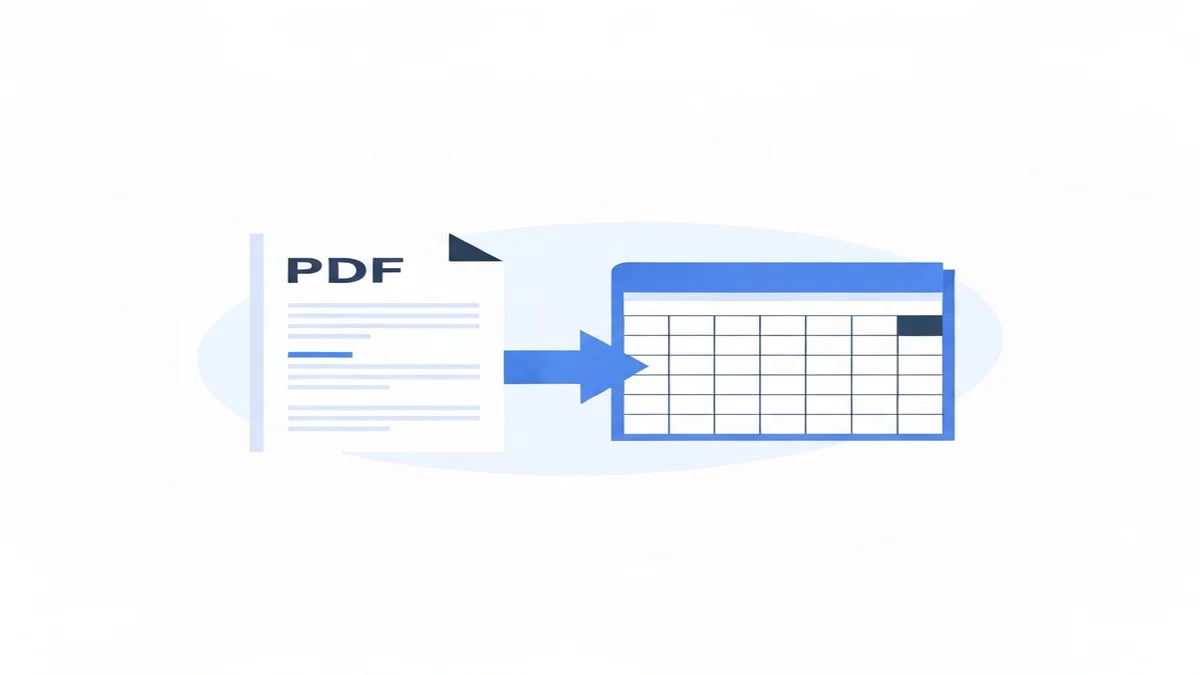
Manual data entry is tedious and error-prone. A much faster and more accurate way to convert your Bank of America statement to Excel is by using a specialized bank statement converter tool. These tools are designed to read your PDF statements and pull out all the necessary information, putting it into a neat Excel file for you.
Think about the time you would save. Instead of spending an hour typing out 100 transactions, a converter can do it in minutes. This speed is especially helpful for small business owners who handle many transactions or for anyone who wants to track their money without the hassle. It turns a long, boring task into a quick click.
Here’s how a typical bank statement converter works. First, you take your downloaded Bank of America PDF statement. Then, you go to the converter tool's website. You'll usually see an option to "Upload File" or "Choose PDF." Click this button and select your Bank of America PDF from your computer. For example, you would select "BoA Checking Jan 2024.pdf."
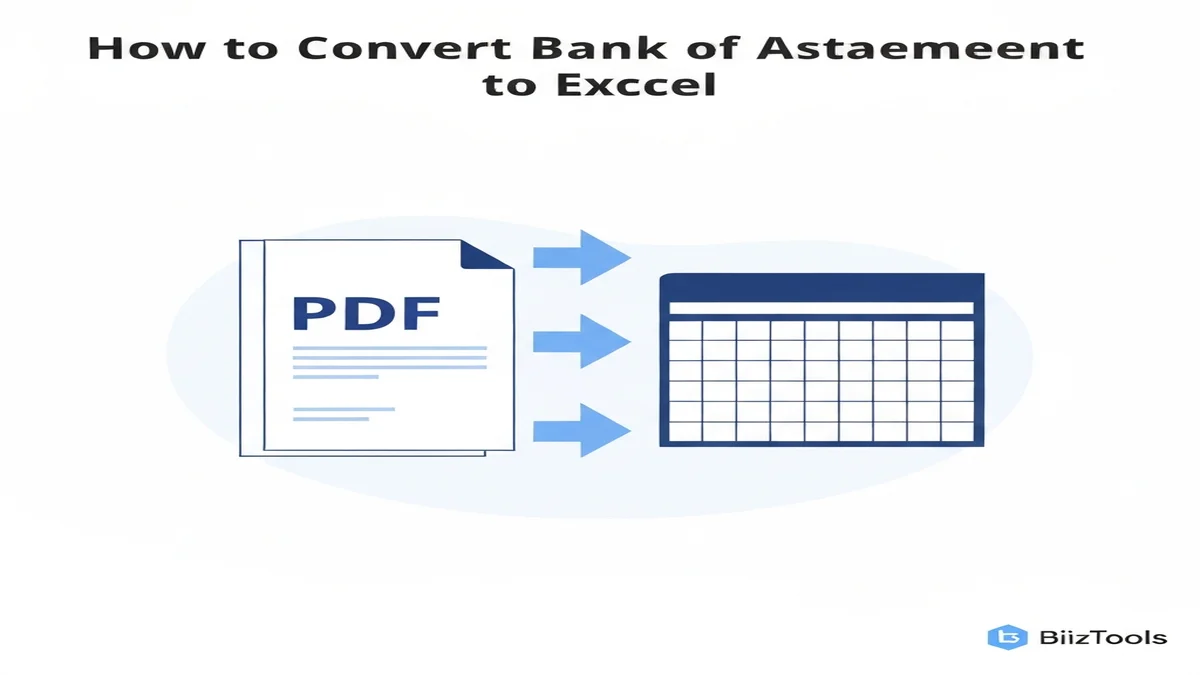
Once your file is uploaded, the tool processes it. It uses smart technology to read the dates, descriptions, and amounts from your statement. This means it understands the layout of different bank statements, including those from Bank of America. After processing, the tool provides you with a link to download your new Excel file. You click this link, and the Excel file is saved to your computer.
The Excel file will have all your transactions already organized into columns. You'll likely see columns for "Date," "Transaction Description," "Debit," "Credit," and maybe even a "Balance" column. This structure saves you all the manual setup. For instance, a $25.00 payment for "Restaurant" would appear on one row, with $25.00 in the "Debit" column. A $100.00 deposit would have $100.00 in the "Credit" column.
Using a converter also greatly reduces errors. Machines are much better at reading and transferring data accurately than humans, especially for repetitive tasks. This means you can trust your data more for budgeting and tax purposes. If you often convert bank statement PDF to Excel from various banks, a converter is an essential tool. It simplifies a complex process into a few easy clicks, letting you focus on understanding your money instead of typing numbers.
Tips for Working with Your Bank of America Data in Excel
Once you have your Bank of America transactions in an Excel file, the real work of understanding your money can begin. Excel is a powerful tool for organizing and analyzing data. Here are some tips to help you get the most out of your converted statement.
First, categorize your expenses. This is perhaps the most important step for budgeting. Add a new column to your Excel sheet, perhaps called "Category." Then, go through each transaction and assign it a category. For example, "Starbucks" could be "Coffee/Dining." A charge from "Amazon" could be "Shopping" or "Home Goods." "Shell Gas Station" would be "Transportation." Be consistent with your categories. If you use "Groceries" for one store, use it for all grocery stores. This consistency makes analysis much easier.
Excel's filtering and sorting features are incredibly useful. Click on any column header and use the "Filter" option. You can then click the small arrow next to the "Category" column and select only "Groceries." Instantly, you'll see all your grocery purchases. This helps you quickly identify where your money is going. If you want to see your biggest expenses, sort the "Amount" column from largest to smallest. You might be surprised by what you find.
Use formulas to sum up your spending. Once your transactions are categorized, you can easily add up totals. For example, to find out how much you spent on "Utilities," type =SUMIF(D:D,"Utilities",C:C) in an empty cell (assuming Category is in column D and Amount in column C). This formula will add all amounts that have "Utilities" as their category. This allows you to quickly see your total spending for each category. If you have multiple accounts, knowing how to read a bank statement for each bank will help you merge and categorize them effectively.
Keep track of business expenses separately. If you use your Bank of America account for business, create a special "Business Expense" category. This makes tax preparation much simpler. You can filter for "Business Expense" and sum up all deductions for your tax forms. This is much faster than sifting through paper receipts. For instance, if you paid $120 for "Marketing Software" and $75 for "Office Supplies," you'd categorize them for easy summing.
You can also use conditional formatting. This helps you spot trends visually. For example, you can set Excel to highlight all transactions over $100 in red. This makes large purchases stand out right away. You might notice you spent $250 on dining out three times in a month, which prompts you to adjust your budget.
If you manage multiple bank accounts, perhaps a Bank of America account and a Wells Fargo statement conversion, you can convert all of them to Excel. Then, you can combine all the data into one master spreadsheet. This gives you a complete view of your financial picture across all banks. You can then use the same categorization and analysis methods on your combined data. This holistic view is invaluable for comprehensive financial planning.
Remember to save your Excel file often. You can create a new version each month or quarter. This helps you compare spending over different periods. For example, you can compare your "Transportation" spending from March to April. Did it go up or down? Why? These insights help you make smarter financial decisions moving forward.
FAQ About Converting Bank of America Statements to Excel
Q: Is it safe to convert my Bank of America statement using an online tool? A: Yes, if you choose a reputable tool that cares about your privacy. Good converters use secure connections and do not store your financial data after conversion. Always check the tool's privacy policy to make sure your information stays safe and private. Your security is always important when handling personal financial documents.
Q: Can I convert Bank of America statements from many years ago? A: You can convert any Bank of America PDF statement you can download from your online banking account. Bank of America typically offers statements for several past years directly on their website. If a statement is too old to download, you might need to contact the bank directly to request it before you can convert it.
Q: What if my Bank of America statement has many pages? A: A reliable bank statement converter can handle multi-page PDF statements without a problem. It will extract all transactions from every page and put them into a single, organized Excel file. This saves you the trouble of manually combining data from different pages, making the conversion process quick and easy.
Converting your Bank of America statement to Excel is a smart move for anyone serious about managing their money. It changes a static document into a dynamic tool you can use for budgeting, tax preparation, and understanding your spending habits. While manual entry is an option, it's slow and risky.
Using a dedicated conversion tool is the quickest and most accurate way to get your data into Excel. It saves you time, reduces errors, and puts you in control of your financial information. Take charge of your finances today. Get started with the BiizTools Bank Statement Converter to easily turn your Bank of America PDFs into usable Excel data. Visit Bank Statement Converter now.
Frequently Asked Questions
Converting your Bank of America statement to Excel allows for powerful money management. You can easily sort transactions, track spending categories like gas or groceries, create accurate budgets, and prepare for tax season much faster. It gives you deeper insights than a standard PDF.
Analyzing your data in Excel offers several key benefits. You can quickly identify spending patterns, verify budget adherence, and simplify expense tracking for personal or business finances. This detailed view helps you make smarter financial decisions and save significant time on tasks like tax preparation.
Yes, converting your statement makes budgeting and tax preparation much simpler. Excel enables you to categorize expenses, sum totals for specific periods or categories (like office supplies), and quickly see your actual spending versus your budget. This reduces manual effort and improves accuracy for both personal and business financial planning.
Ready to convert your bank statement?
Try our free Bank Statement to Excel converter. Upload your PDF and get a clean spreadsheet in seconds.
Convert Now