Capital One Statement to Excel: Simplify Your Spending Analysis
Getting your Capital One statement into Excel can seem tricky. Your monthly statement often arrives as a PDF file. While PDFs are good for viewing, they are not easy to use for managing your money.
To truly understand your spending, you need your data in a format you can work with. Excel is perfect for this. It lets you sort, filter, and add up your transactions quickly. This guide shows you how to convert your Capital One statement to Excel, making your financial life much simpler.
Why Convert Your Capital One Statement to Excel?
Converting your Capital One statement to Excel gives you better control over your money. PDFs are like a picture of your spending. You can look at it, but you can't easily change or add things up. Excel turns that picture into useful numbers.
Imagine you spent $35 on coffee this month and $120 on groceries. In a PDF, you have to find each purchase and add them up by hand. In Excel, you can sort all "Coffee" items and see your total in seconds. This saves you a lot of time and avoids math mistakes.
Converting your convert bank statement PDF to Excel helps with budgeting. Say you want to limit your dining out to $200 each month. With your Capital One data in Excel, you can quickly see if your restaurant spending is $250 or $150. This real-time check helps you stick to your financial goals.
It also makes tax time much easier. If you use your Capital One card for business, you need to track specific expenses. For example, if you bought $75 in office supplies and a $49 software subscription, Excel lets you easily filter for these business costs. You can quickly add up all your tax-deductible items without searching through many pages of PDF.
Finding errors is another big benefit. Banks can make mistakes. Maybe you were charged $10 twice for the same online movie rental. When your data is in Excel, you can sort by amount or description. Duplicate charges, like two $10 entries for "Movie Streaming," become much easier to spot. This helps you save money by catching and correcting these errors.
Excel also helps you expense categorization. You can assign each transaction a category like "Utilities," "Entertainment," or "Travel." This lets you see where most of your money goes. For instance, you might discover you spend $500 a month on entertainment, which you can then decide to adjust.
Finally, having your Capital One transactions in Excel lets you spot trends. Are your gas expenses, maybe $80 per week, going up? Is your subscription total, perhaps $50 per month, slowly increasing? Excel shows you these patterns over time, helping you make smart money decisions for the future.
How to Download Your Capital One Statement
Before you can convert your Capital One statement to Excel, you need to get the PDF file. This is a straightforward process from your Capital One online account. Make sure you have your login details ready.
First, open your web browser and go to Capital One's official website. Look for the "Sign In" button, usually at the top right corner of the page. Click it and enter your username and password. This step makes sure your account information stays secure.
Once you are logged in, you will see your account dashboard. This page shows an overview of your Capital One credit cards, bank accounts, or other products you have with them. Look for the specific account you want to get statements for. If you have a Capital One Venture card and a Capital One 360 checking account, make sure to pick the correct one.
Next, find the section for "Statements" or "Documents." This might be under a menu like "My Accounts" or "Account Services." The exact wording can change slightly, but it’s usually easy to find. Click on this section to view your available statements.
You will then see a list of your past statements. These are usually organized by month and year. For example, you might see "December 2023 Statement" or "January 2024 Statement." Choose the specific statement period you want to download. Perhaps you need all statements from the past three months for a budget review. Select "March 2024," "February 2024," and "January 2024" one by one.
After selecting the statement, look for a download option. Capital One typically offers statements as PDF files. There will often be a button that says "Download PDF" or an icon like a down arrow next to the statement date. Click this button to start the [capital one statement download] process.
Your browser will then download the PDF file to your computer. It usually goes into your "Downloads" folder. The file name might look like "CapitalOneStatement_20240331.pdf." Take note of where it is saved so you can find it easily later. This PDF is the file you will use for the conversion process.
Remember to only download statements from Capital One's official website. This keeps your financial data safe. Do not use unofficial links or emails that ask for your login details. Always double-check the website address to make sure it is capitalone.com.
Choosing the Right Tool to Convert Capital One PDF to Excel
Once you have your Capital One statement saved as a PDF, the next step is to convert it into an Excel file. There are a few ways to do this, but some are much better and safer than others. Knowing your options helps you pick the best method for your needs.
One way is to try to copy and paste the information manually. You can open your Capital One PDF, select the transaction details, and then paste them into an Excel spreadsheet. This method is free and doesn't require any special tools. However, it's very time-consuming and prone to errors.
Imagine your Capital One statement has 80 transactions for the month. Each transaction has a date, a description, and an amount. Manually copying each line, like a $12.50 lunch, a $60 utility bill, and a $200 credit card payment, takes a long time. You might accidentally miss a transaction or paste a number incorrectly, like typing $15.00 instead of $1.50. This can mess up your entire financial tracking. For a statement with hundreds of entries, manual copy-pasting is simply not practical.
Another option is to use general online PDF to Excel converters. You can upload your Capital One PDF to these websites, and they will try to convert it. While some of these tools might work, they are not designed specifically for bank statements. They might not correctly identify dates, transaction descriptions, or separate debits and credits.
More importantly, uploading your bank statement to a random website can be risky. Your Capital One statement contains sensitive financial information, such as your full name, address, account number, and all your spending details. Sending this data to a service you don't trust could expose you to privacy risks. You don't want your $700 rent payment or your $35 gas purchase details falling into the wrong hands. It's crucial to use a secure service when handling financial documents.
The best approach for converting your [capital one pdf to excel] is to use a tool specifically built for bank statements. These tools understand the unique structure of financial documents. They can accurately extract dates, descriptions, and amounts, even when statements look different. BiizTools Bank Statement Converter is one such tool.
BiizTools is designed to handle different bank statement formats, including those from Capital One. It focuses on security and accuracy. This means when you upload your [convert capital one pdf], the tool knows where to look for transaction details. It can correctly identify a $2.99 coffee charge as an expense and a $1,000 payment as a credit. This ensures your Excel file is accurate and ready to use without much cleanup. Choosing a dedicated tool saves time, reduces errors, and keeps your financial information secure. For example, similar tools exist for Citibank statement conversion.
Step-by-Step: Convert Capital One PDF to Excel with BiizTools
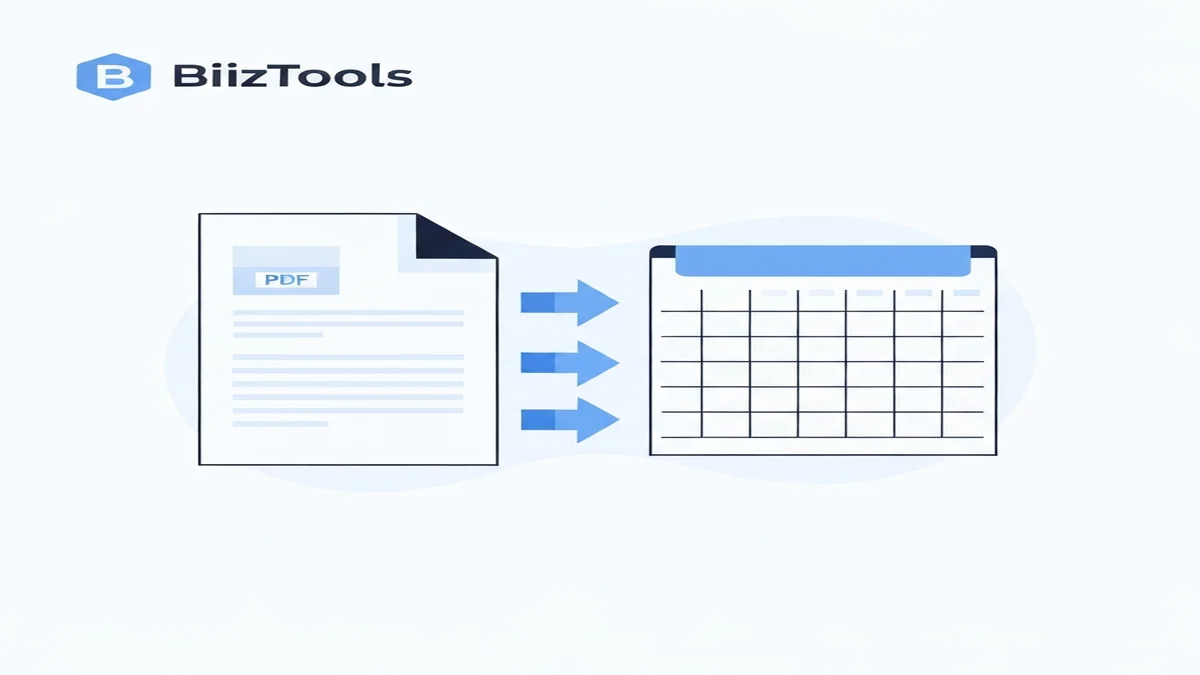
Using the BiizTools Bank Statement Converter to turn your Capital One PDF into an Excel file is quick and easy. This tool is built to handle bank statements, so it understands the specific layout of your Capital One transactions. Follow these simple steps to get your data ready for analysis.
First, open your web browser and go to the BiizTools Bank Statement Converter page. You can find it directly at BiizTools Bank Statement Converter. This is where the conversion magic happens.
Once on the page, you will see an area where you can upload your PDF file. Look for a button that says "Upload PDF" or "Choose File." Click this button. A window will pop up, asking you to select the Capital One statement PDF you downloaded earlier. Navigate to the folder where you saved your statement, for example, your "Downloads" folder, and select the file.
After you select your PDF, the file will begin uploading to the BiizTools converter. The tool will then start processing your Capital One statement. This step is automatic. The converter reads through your PDF, looking for all the important details. It identifies dates like "03/15/2024," transaction descriptions like "Coffee Shop Expense," and amounts like "$4.75" or "$150.00."
The tool uses smart technology to understand how Capital One structures its statements. It knows how to separate different types of transactions, like a $25 movie ticket debit from a $50 cash back credit. This ensures that the data it extracts is correct and organized. You don't need to tell it what to look for; it already knows.
Once the processing is complete, BiizTools will show you a preview of your converted data. Take a moment to look at this preview. Check if the dates, descriptions, and amounts seem correct. For instance, quickly scan to see if a $100 payment appears correctly as a credit and a $50 restaurant bill as a debit. This quick check helps ensure everything looks right before you download.
Finally, you will see a button to "Download Excel File" or "Download CSV." Click this button to save your newly converted Capital One statement to your computer. The file will download as an Excel spreadsheet (usually a .xlsx or .csv file). You can then open this file with Microsoft Excel, Google Sheets, or any other spreadsheet program.
Now you have your Capital One transactions neatly organized in Excel. Each transaction will likely be on its own row, with columns for date, description, and amount. This organized data is now ready for you to sort, filter, and analyze to better manage your money. This entire process, from upload to download, usually takes just a few moments.
What to Do After Converting Your Statement to Excel?
Converting your Capital One statement to Excel is a powerful first step. But the real benefits come from what you do with that Excel file next. Now you have a clear, usable record of your spending. Here’s how to make the most of it.
First, organize your data. The Excel file will have columns like "Date," "Description," and "Amount." You can add new columns to help you sort your spending. A very helpful column to add is "Category." Go through each transaction and assign it a category like "Groceries," "Utilities," "Transportation," or "Entertainment." For example, a $75 purchase at a supermarket goes under "Groceries," and a $45 gas fill-up goes under "Transportation."
Once categorized, you can easily filter and sum your spending. Want to know how much you spent on "Dining Out" in February? Just filter the "Category" column for "Dining Out" and sum the "Amount" column. You might find you spent $320, which is more than your goal of $200. This instant feedback helps you adjust your habits.
Use your Excel data for budgeting. You can set specific limits for each category. If you plan to spend $400 on groceries this month, you can track your actual spending against that budget. As you add new Capital One statements each month, you can compare your spending habits over time. Did your electricity bill jump from $80 to $110 this month? Excel makes that visible.
For business owners, this Excel file is a goldmine for tax preparation. Add a column called "Business Expense." Mark "Yes" for transactions that are business-related, like a $99 software subscription or a $150 client lunch. At tax time, you can filter for all "Yes" entries and quickly total your deductions. This saves hours of manual work and ensures you don't miss any write-offs.
Regularly review your financial health. Once a month, open your Capital One Excel file. Look for patterns. Are your total subscriptions, maybe $75 a month, increasing without you knowing? Are you making more small, impulse purchases, like daily coffees totaling $60 a month? Seeing these numbers clearly helps you make smarter choices about your money.
You can also use Excel to track your net worth. Combine your Capital One spending data with other financial information, like savings account balances or loan payments. This gives you a bigger picture of your financial standing and helps you plan for future goals, like saving $5,000 for a down payment.
Converting your Capital One statement to Excel is not just about moving data. It's about gaining clarity and control over your personal finances.
Frequently Asked Questions
Q1: Is it safe to convert my Capital One statement online?
Yes, it is safe when you use trusted tools. Always choose services that focus on privacy and security, like BiizTools. Avoid sending your financial PDFs to unknown websites. Reliable converters use secure connections and do not store your sensitive data after conversion. This protects your financial details from unauthorized access.
Q2: Can I convert multiple Capital One statements at once?
Most online bank statement converters handle one PDF file at a time. This helps ensure accuracy for each statement. If you have several Capital One statements, you will need to upload and convert each PDF separately. After conversion, you can combine all the individual Excel files into one main spreadsheet for a full financial overview.
Q3: What if the converted data is not perfect?
Sometimes, a transaction might appear in the wrong column or be slightly off. This can happen with very complex PDF layouts. If your converted Capital One data isn't perfect, you can easily fix it directly in Excel. You can drag cells, correct numbers, or retype descriptions. This small cleanup is still much faster than typing everything by hand.
Converting your Capital One statement to Excel doesn't have to be a headache. By following these steps, you can easily turn your PDF statements into useful, manageable data. This gives you a clear picture of your spending and helps you make better financial choices. Take control of your money today. Get started quickly and easily with the BiizTools Bank Statement Converter at BiizTools Bank Statement Converter.
Frequently Asked Questions
Converting your Capital One statement to Excel helps you gain better control of your money. It allows for easy sorting, filtering, and totaling of transactions, making budgeting, tax preparation, and identifying spending patterns much simpler than reviewing a static PDF.
Excel transforms your Capital One spending data into an interactive format, allowing you to quickly categorize and total expenses like dining or groceries. This real-time visibility helps you monitor your spending against your budget goals, ensuring you stick to your financial limits.
Yes, definitely. If you use your Capital One card for business expenses, putting your statement into Excel allows you to easily filter and sum up all tax-deductible items like office supplies or software subscriptions. This saves significant time and reduces errors during tax season.
Ready to convert your bank statement?
Try our free Bank Statement to Excel converter. Upload your PDF and get a clean spreadsheet in seconds.
Convert Now