Chase Bank Statement to Excel: Guide for Budgeting & Tax Prep
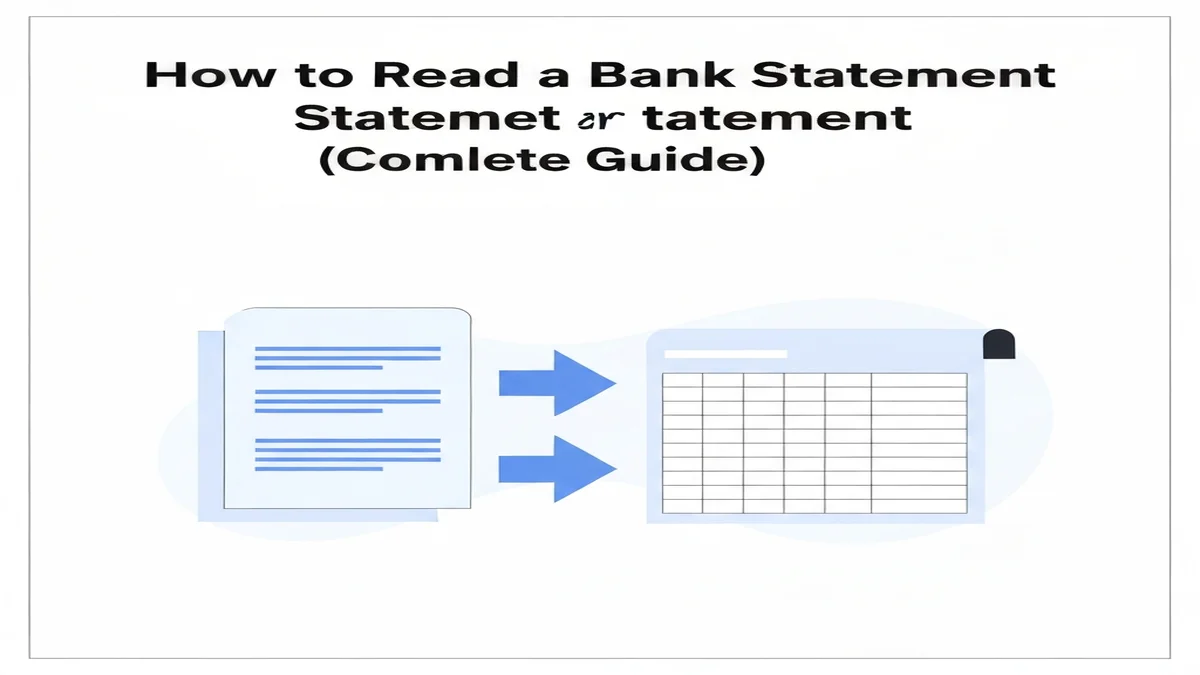
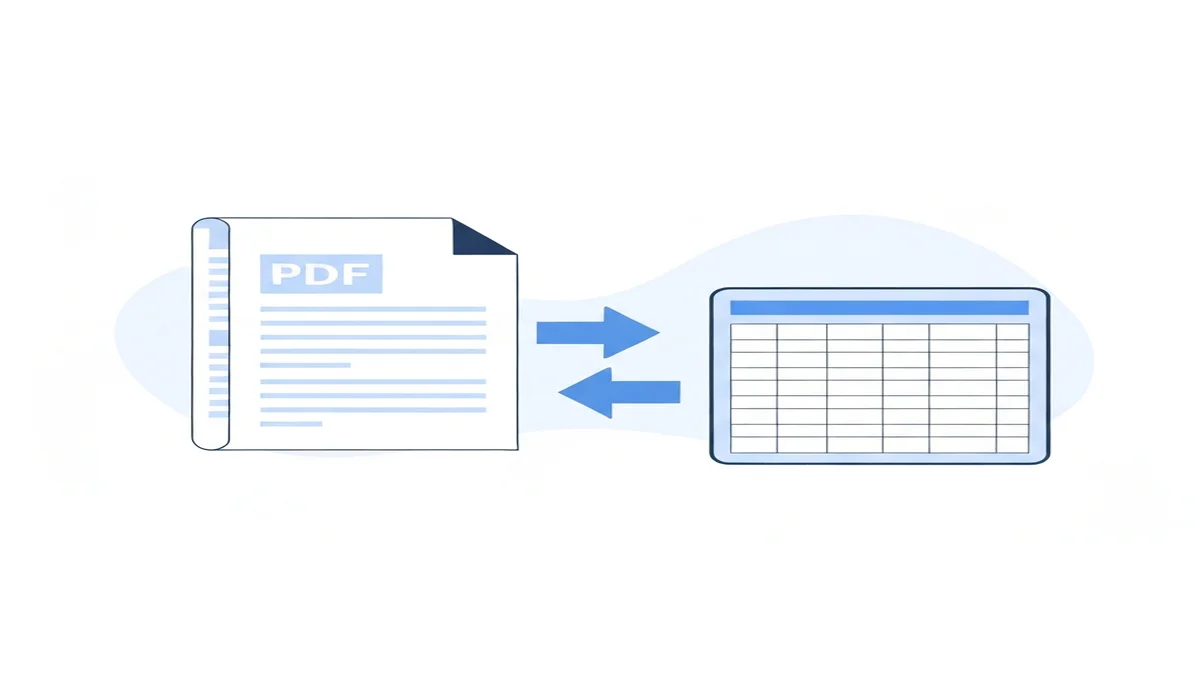
Converting your Chase bank statement to Excel helps you understand your money better. It makes budgeting, tax prep, and tracking your spending much easier. Instead of looking at a plain PDF, you get a clear, organized spreadsheet.
This guide will show you how to download your Chase statement and turn it into a useful Excel file. You'll learn the benefits of having your "chase bank statement to excel" and how to do it efficiently.
Why Convert Your Chase Bank Statement to Excel?
Turning your Chase statement into an Excel file offers many advantages. It moves your financial data from a static document into a flexible tool. This makes managing your money simple and effective.
First, Excel helps with budgeting. You can quickly see where your money goes each month. For example, you might notice you spent $450 on dining out last month. This insight helps you make better spending choices next month.
Second, it simplifies tax preparation. All your transactions are in one place, making it easy to find deductible expenses. Imagine needing to find all your business software subscriptions from last year. With Excel, you can filter for "software" and see all $1,200 you spent at once.
Third, you get better financial analysis. You can spot trends and control your cash flow. You might find a $19.99 subscription you forgot about or see how much you spend on utilities each quarter. This helps you plan for future costs.
Fourth, it improves accuracy and organization. Copying numbers by hand often leads to mistakes. An automated conversion tool means fewer errors. Your data is neat and ready to use, improving your overall financial record keeping. Getting your "convert chase statement" done this way saves time and prevents headaches.
Finally, it helps with reporting. You can create custom reports for personal goals or business needs. Whether you're tracking savings for a new car or monitoring business expenses, Excel makes it possible.
How to Download Your Chase Bank Statement
Before you can convert your Chase statement to Excel, you need to download it. Chase provides statements online as PDF files. Here are the steps to get your statement:
- Log in to Chase Online: Go to chase.com and enter your username and password. This gets you into your secure account.
- Select Your Account: On the main page, find the account you want a statement for (e.g., checking, savings, credit card). Click on it.
- Find "Statements & Documents": Look for a tab or link labeled "Statements & Documents," "Paperless," or "Account Activity." This section holds all your past statements.
- Choose Your Statement Period: You'll see a list of available statements by month and year. Pick the specific statement period you need. For instance, you might select "July 2023."
- Download as PDF: Chase usually offers the statements as PDF files. Click the download icon or link next to the statement you want. Save the PDF file to your computer. Remember the file name and where you saved it.
Chase does not offer a direct "chase statement download excel" option. The downloaded file will almost always be a PDF. This PDF is what you will use for the next step: converting it to an editable format.
Challenges of Converting Chase PDF to Excel Manually
Many people try to convert a "chase pdf to excel" by hand. They might try to copy and paste information directly from the PDF into an Excel sheet. This method often causes more problems than it solves. It can be frustrating and wastes a lot of time.
One big issue is formatting breakage. When you copy text from a PDF, it rarely pastes cleanly into Excel. Dates might turn into long strings of numbers, or amounts might get stuck together with descriptions. For example, "$125.50-Walmart" might paste as one cell instead of "125.50" in one column and "Walmart" in another.
Another challenge is that data often mixes up. What looks like clear columns in the PDF often becomes a mess in Excel. Transaction dates might end up in the description column, or debit amounts might appear in the credit column. This means you have to manually rearrange almost everything.
Time consumption is also a major drawback. Imagine a 10-page bank statement with 100 transactions. Manually copying and organizing each date, description, and amount could take several hours. If you make a mistake, you have to find and fix it, which takes even more time.
Finally, manual conversion is prone to errors. It's easy to miss a transaction or type a wrong number. Copying $1,250.00 as $125.00 can lead to big problems when you're trying to balance your books. These errors can make your financial records unreliable for budgeting or tax purposes. This is why using a dedicated tool is much better.
Step-by-Step: Using a Tool to Convert Chase PDF to Excel
Converting your "chase bank statement to excel" is simple with the right tool. Forget about copying and pasting errors. A specialized bank statement converter can do the heavy lifting for you. Here’s how it works:
- Find a Reliable Converter Tool: Look for an online tool designed specifically for bank statement conversion. These tools are built to read banking PDFs correctly.
- Upload Your Chase PDF Statement: Go to the converter's website. There will be a clear button or area to upload your PDF file. Click it and select the Chase statement PDF you downloaded earlier from your computer.
- Start the Conversion Process: Once your file is uploaded, the tool will usually have a "Convert" or "Process" button. Click this to begin. The tool uses smart technology to scan the PDF, identify dates, descriptions, and amounts. It knows how to separate debits from credits.
- Review and Download Your Excel File: After a short wait, the tool will finish. You'll typically see a preview of the converted data or be prompted to download the new Excel file. Click "Download" to save the .xlsx file to your computer.
The Excel file will typically have columns like: * Date: The date of the transaction (e.g., 07/15/2023) * Description: What the transaction was for (e.g., "Starbucks Coffee", "Amazon.com") * Amount: The value of the transaction (e.g., -$5.50 for a debit, +$100.00 for a credit) * Type: Sometimes separated into "Debit" and "Credit" columns, or a single amount column with positive/negative signs. * Balance: The account balance after each transaction.
This structured data makes it easy to work with. For instance, if you had a payment of $120.00 to "EZ Rent" on July 1st, it would appear as a neat row in Excel. No more struggling with messy PDF tables.
What to Do After Converting Your Statement to Excel
Once you have your "chase bank statement to excel," the real work, and the real benefits, begin. The Excel file is a powerful tool for managing your money. Here are key steps to take:
Verify Your Data
First, quickly check the Excel file against your original PDF. Make sure all transactions are there and the numbers look correct. This simple check confirms the conversion worked perfectly. Look at the total number of transactions and the final balance.
Categorize Transactions
This is a crucial step for budgeting and taxes. Add a new column in Excel called "Category." Then, go through each transaction and assign it a category. For example: * "Starbucks" or "Local Diner" becomes "Dining." * "Amazon.com" or "Target" becomes "Shopping." * "Chevron" or "Shell" becomes "Transportation/Fuel."
expense categorization helps you understand where your money is truly going. If you spend $300 on groceries and $250 on dining out in a month, categorizing makes it clear.
Reconcile Accounts
Comparing your bank data to your own records is vital, especially for businesses. Use the converted statement to make sure your internal books match what the bank recorded. This helps find any missing transactions or errors. reconcile bank statements makes sure your accounts are always in sync. For example, if your company's ledger shows a $1,500 payment received, you can check your Excel statement to confirm the deposit appears.
Analyze Spending
Excel's tools can quickly sum up spending for different categories. Use the "SUM" function or create pivot tables. You can see your total spending on "Utilities" for the year, or how much you paid for "Rent" each month. This helps you identify areas to save money. For example, you might find you spent $2,000 on subscriptions last year and decide to cut some.
Create Visuals
Charts and graphs make data easier to understand. Create a pie chart showing your spending breakdown by category. Or, make a bar graph of your monthly expenses over the past year. These visuals provide a clear picture of your financial habits. They turn raw numbers into actionable insights, helping you visualize your money flow.
By following these steps, your "chase bank statement to excel" becomes a living document. It's not just a record of the past, but a guide for your financial future.
Frequently Asked Questions About Converting Chase Statements
Is it safe to convert my bank statement online?
Yes, using a reputable online tool to convert your bank statement is generally safe. Good tools use strong encryption to protect your data. They don't store your sensitive information after the conversion. Always check that the website address starts with "https://" to ensure a secure connection.
Can I download Chase statements directly as Excel?
No, Chase Bank does not offer the option to download statements directly in Excel format. They provide statements as PDF files through their online banking portal. To get your "chase bank statement to excel," you will need to download the PDF first and then use a conversion tool.
What kind of information is extracted into Excel?
When you convert your Chase PDF statement to Excel, the tool extracts key transaction details. This usually includes the date of each transaction, a description of the transaction (e.g., "Walmart Purchase," "Salary Deposit"), the amount of the transaction (often separated into debits and credits), and the running balance of your account.
Converting your Chase bank statement to Excel is a smart move for anyone serious about managing their money. It takes your financial data from a hard-to-use PDF to a flexible, powerful spreadsheet. Whether you're tracking daily spending, preparing for taxes, or planning for the future, Excel makes it easier.
Don't spend hours trying to manually copy data or deal with formatting errors. Take advantage of modern tools designed for accuracy and speed. Ready to simplify your financial life? Try BiizTools' convert bank statement PDF to Excel tool today. Our free Bank Statement Converter (biiztools.com/tools/bank-statement-to-excel/) makes converting your "chase bank statement to excel" fast and easy.
Frequently Asked Questions
Converting your Chase statement to Excel offers many advantages, including enhanced budgeting capabilities, simplified tax preparation by centralizing deductible expenses, better financial analysis to spot spending trends, and improved accuracy in your financial records. It transforms static data into a flexible tool for smarter money management.
Excel allows you to quickly categorize and analyze your transactions, providing clear insights into where your money goes each month. You can easily identify spending patterns, spot forgotten subscriptions, and make informed decisions to control your cash flow, making budgeting and spending tracking much more effective than with a plain PDF.
Yes, converting your Chase statement to Excel significantly simplifies tax preparation. All your financial transactions are in one organized place, making it easy to filter and find specific deductible expenses or income sources. This efficiency saves time, reduces the risk of manual errors, and streamlines the entire process of gathering tax-related information.
Ready to convert your bank statement?
Try our free Bank Statement to Excel converter. Upload your PDF and get a clean spreadsheet in seconds.
Convert Now