How to Convert Your Citibank Statement to Excel Easily
How to Convert Your Citibank Statement to Excel
Keeping track of your money is important. Many people use Citibank for their banking. When you get your bank statement, it usually comes as a PDF file. This format is good for reading, but not for working with your numbers.
To truly understand your spending, you often need to put your Citibank data into a spreadsheet like Excel. This lets you sort, filter, and calculate everything easily. This guide will show you how to turn your Citibank PDF statement into an Excel file.
Why Convert Your Citibank Statement to Excel?
Converting your Citibank statement to Excel offers many benefits. It changes your financial data from a static picture into a dynamic tool. This helps you make smarter choices with your money.
First, budgeting becomes much simpler. Imagine you want to know how much you spend on groceries each month. If you have your data in Excel, you can quickly filter for all "Grocery Store" transactions. This helps you see if you're over your $400 budget, for example. Without Excel, you'd have to read through every line of a PDF, which is time-consuming.
Second, tracking your expenses gets easier. Maybe you run a small business and use a personal Citibank card for some business expenses. In Excel, you can separate these quickly. You can mark business expenses with a "B" and personal ones with a "P," then sum them up. This clarity is tough to get from a plain PDF.
Third, preparing for taxes becomes less stressful. If you need to show all transactions for a specific category, like office supplies, Excel makes it fast. You can export a list of all "Staples" or "Office Depot" purchases, totaling $750 for the year, in just a few clicks. This saves you hours compared to sifting through paper or PDF statements.
Finally, Excel helps you spot mistakes or unusual activity faster. If you see a $150 charge you don't recognize, it stands out more in a spreadsheet where everything is neatly organized. You can easily compare it to other transactions around the same date. A PDF can hide these small details more easily within its long lists of transactions.
How to Download Your Citibank Statement (PDF)
Before you can convert your Citibank statement to Excel, you need to get the statement itself. Citibank provides your statements through their online banking portal. This is the safest and most reliable way to get your official documents.
Here’s a step-by-step guide to downloading your statement:
- Log In to Your Citibank Account: Open your web browser and go to the official Citibank website. Enter your User ID and Password to log in to your online banking account. Always make sure you are on the legitimate Citibank site to protect your information.
- Find the Statements Section: Once logged in, look for a section related to "Statements," "Documents," or "E-Statements." This is usually found in the main navigation menu or under a specific account detail page. For example, you might click on your checking account, then look for a "Statements" tab.
- Select Your Account: If you have multiple Citibank accounts (like a checking account, savings account, and credit card), choose the specific account for which you want to download the statement. Make sure you pick the correct one.
- Choose the Statement Period: You'll see options to select the month and year of the statement you need. For instance, you might select "June 2024" from a dropdown menu. If you need several months, you'll likely have to download them one by one.
- Download as PDF: Once you select the period, you will usually see an option to "View Statement" or "Download." Make sure you choose to download the statement in PDF format. This is the most common format provided by banks. Click the download button, and the PDF file will be saved to your computer, typically in your "Downloads" folder. Always double-check where the file saved so you can find it later.
- Repeat if Needed: If you need statements for multiple accounts or several different months, repeat these steps for each one. This ensures you have all the necessary PDF files ready for conversion. For example, if you need statements for three accounts for the last six months, you will perform this process 18 times.
Manually Converting Citibank PDF to Excel (The Hard Way)
You can try to convert a Citibank PDF statement to Excel by hand. This method involves copying and pasting information directly from the PDF into an Excel spreadsheet. While it's free, it's also very time-consuming and often leads to errors.
First, open your PDF statement. Then, open a new Excel workbook. You will go line by line, copying details from the PDF and pasting them into the correct cells in Excel. For example, you would copy the date "07/15/2024" and paste it into cell A1. Then, copy the "Description" like "Starbucks Coffee" and paste it into cell B1. Finally, copy the "Amount" like "$4.75" and paste it into cell C1.
This process sounds simple, but PDFs are not designed for easy data extraction. When you copy text from a PDF, it often doesn't paste cleanly into Excel. Dates might appear incorrectly, or numbers might merge with other text. A transaction like "Starbucks Coffee - $4.75" might paste as one block of text. You would then have to manually split it into separate columns for description and amount. This means a lot of extra work.
Imagine you have a Citibank statement with 10 pages and 20 transactions per page. That's 200 transactions. If each transaction takes 30 seconds to copy, paste, and clean up, you're looking at 100 minutes of work. If there are 5 columns of data for each transaction, that time quickly multiplies. You might spend 2-3 hours on a single statement just to get the data into a usable format.
Common problems include extra spaces, merged cells, or missing data points. Sometimes, the amounts might not be recognized as numbers by Excel, meaning you can't sum them up. You would have to go through each number and manually convert it. This manual method becomes even more painful if you have to do this for multiple months or years of statements. It’s not just about the time, but the potential for human error when dealing with hundreds of numbers. This is why many people look for an easier, faster way.
Using a Bank Statement Converter for Citibank PDFs (The Easy Way)
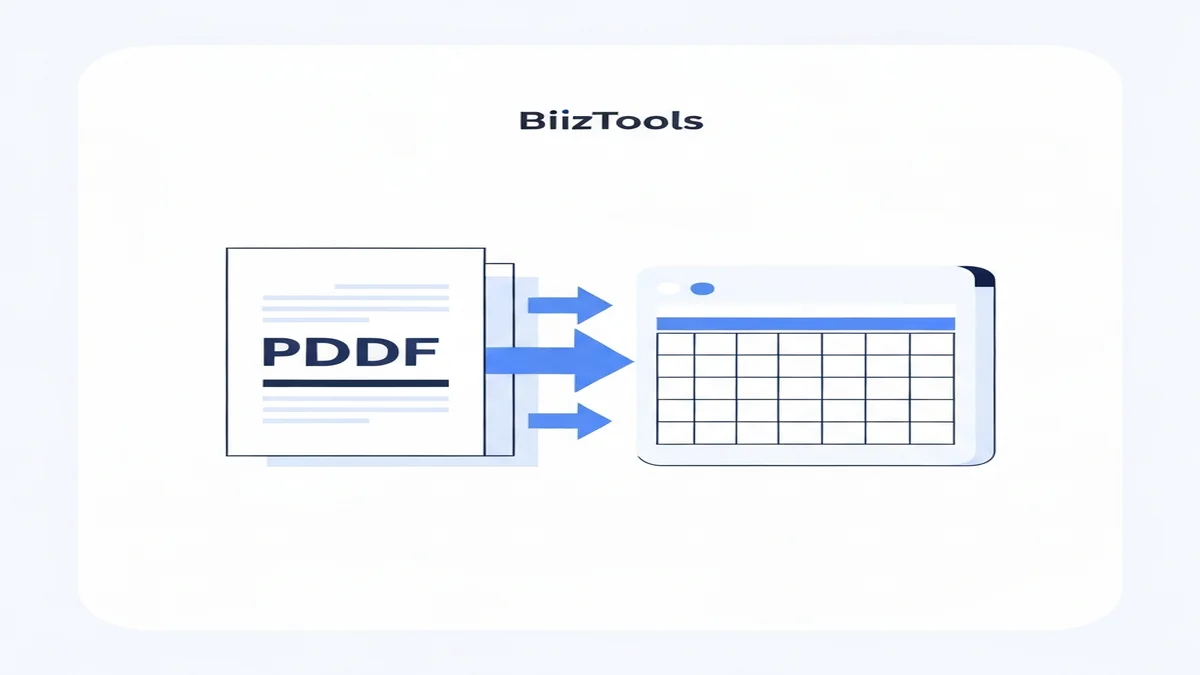
Manually copying data from a Citibank PDF statement to Excel is frustrating and takes a long time. A much better way is to use a special tool called a bank statement converter. These tools are made to read PDF bank statements and turn them into clean, organized Excel files automatically.

Here’s how easy it is to use a bank statement converter:
- Go to the Converter Tool: First, open your web browser and go to a reliable online bank statement converter. For instance, you can use the BiizTools Bank Statement Converter at convert bank statement PDF to Excel. This tool is designed to handle many different bank formats, including Citibank.
- Upload Your PDF Statement: Look for an "Upload" or "Choose File" button. Click it and select the Citibank PDF statement you downloaded earlier from your computer. The tool will then read the data from your PDF. You can often upload multiple files at once, saving even more time if you have several months of statements. This feature is especially helpful if you need to convert a year's worth of statements, like twelve monthly Citibank PDFs.
- Start the Conversion: After uploading, there might be a "Convert" or "Process" button. Click this to start the conversion process. The tool's software will analyze the PDF, pull out all the transaction details, and organize them into rows and columns. This step usually takes less than a minute, even for large statements with hundreds of transactions.
- Download Your Excel File: Once the conversion is done, the tool will give you a link to download your new Excel file. Click this link, and the .xlsx file will be saved to your computer. When you open this file, you'll see all your Citibank transactions neatly arranged in columns like Date, Description, Amount, and Balance. This means no manual typing, no formatting errors, and no wasted time.
These tools are built to handle the tricky layouts of bank PDFs. They ensure that dates are in the right format, numbers are recognized as numbers, and descriptions are clean. This saves you hours of work and reduces the chance of mistakes. It's also great for converting statements from other banks, not just Citibank. For example, if you also have a Capital One account, you can use the same tool for Capital One statement conversion. This makes managing all your finances much easier and more consistent.
Tips for Using Your Citibank Data in Excel
Once you have your Citibank statement data in Excel, you've got a powerful tool. But getting the data into Excel is just the first step. To truly benefit, you need to know how to use Excel's features. Here are some simple tips to get the most out of your converted data.
First, categorize your expenses. This is perhaps the most important step for budgeting. Add a new column to your Excel sheet, perhaps named "Category." Go through each transaction and assign it a category like "Groceries," "Dining Out," "Utilities," "Rent," or "Transportation." For example, a transaction for "Whole Foods" would be "Groceries," and "Shell Gas Station" would be "Transportation." This helps you see exactly where your money goes.
Second, use Excel's filter function. This is a quick way to look at specific types of spending. Click on the header row (like "Category" or "Description"). Then, click the "Filter" button in the Data tab. Now you can click the dropdown arrow next to "Category" and select only "Dining Out." Instantly, you'll see all your restaurant spending for the month, perhaps totaling $350. You can also filter by date range or specific keywords.
Third, create a simple budget. Once your expenses are categorized, you can easily sum them up. Use the SUMIF function. For instance, =SUMIF(C:C,"Groceries",D:D) could sum all grocery expenses if your categories are in column C and amounts are in column D. Compare these totals to your budget goals. If you budgeted $500 for groceries but spent $620, you know where to adjust.
Fourth, track your income and expenses over time. If you convert multiple months of Citibank statements, put them all into one Excel file on different sheets. Or, combine them into one large sheet and add a "Month" column. This lets you see trends. You might notice your utility bill consistently goes up by $30 in the summer months due to air conditioning.
Fifth, identify recurring payments. Filter your "Description" column for common keywords like "Subscription," "Netflix," or "Gym." This helps you find all your monthly subscriptions. You might discover you're paying $15 for a streaming service you no longer use, or a gym membership costing $40 a month. This can save you money.
Finally, use your data for reconciliation. Comparing your bank statement to your own records (like a budgeting app or accounting software) is key. You can reconcile bank statements easily in Excel. Make sure every transaction in your bank data matches an entry in your personal records. This helps catch any missing entries or errors, ensuring your books are accurate. For example, you can mark each reconciled transaction with a "Y" in a new column to keep track.
FAQ
Q1: Is it safe to convert my Citibank statement online? Yes, using a trusted online converter like BiizTools is safe. Reputable tools use encryption to protect your data during upload and conversion. They do not store your financial information after the process is complete. Always check that the website uses "https" for a secure connection.
Q2: Can I convert multiple Citibank statements at once? Many online bank statement converters allow you to upload and convert several PDF files at once. This multi-file conversion saves a lot of time if you need to process statements for different months or accounts. The tool will then provide separate Excel files for each converted PDF.
Q3: What kind of data will be in the Excel file? The converted Excel file will typically include the date of each transaction, a description of the transaction (e.g., "Starbucks Coffee"), the transaction amount (debit or credit), and often the running balance of your account. This organized data makes budgeting and financial analysis much easier.
Converting your Citibank statement to Excel doesn't have to be a chore. With tools like the BiizTools Bank Statement Converter, you can quickly and accurately transform your PDF statements into a powerful Excel spreadsheet. This lets you take control of your finances, understand your spending, and make smarter money decisions. Try it out today at BiizTools Bank Statement Converter and see how easy it is to manage your Citibank data.
Frequently Asked Questions
Converting your Citibank statement to Excel transforms static PDF data into a dynamic financial tool. It simplifies budgeting, makes expense tracking easier, streamlines tax preparation, and helps you quickly spot unusual activity, giving you better control over your money.
Putting your Citibank data into Excel allows for effortless sorting, filtering, and calculations. You can easily manage budgets, categorize spending for tax purposes, separate business from personal expenses, and identify discrepancies much faster than sifting through a PDF.
Yes, Excel significantly simplifies budgeting with your Citibank statement. By filtering transactions, you can quickly see spending in specific categories like groceries or entertainment. This helps you monitor if you're over budget and make informed financial decisions to stay on track.
Ready to convert your bank statement?
Try our free Bank Statement to Excel converter. Upload your PDF and get a clean spreadsheet in seconds.
Convert Now