Convert Bank Statement PDF to Excel: 3 Easy Ways
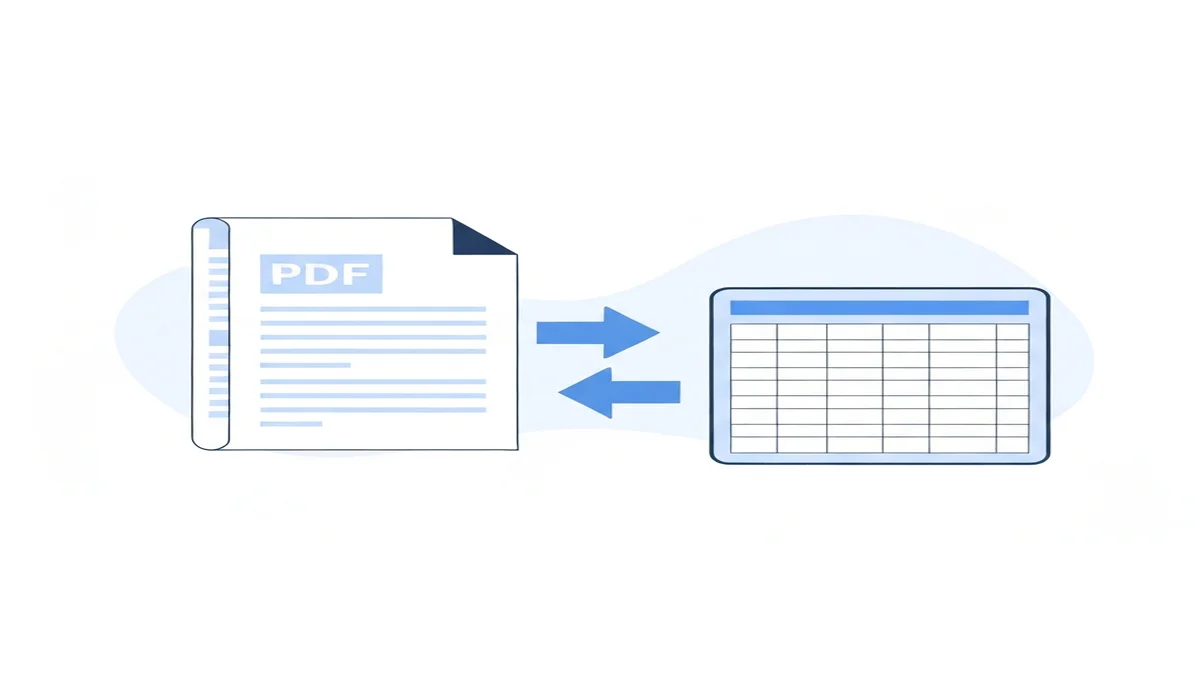
Converting your bank statement from a PDF file to an Excel spreadsheet can make your financial life much easier. Many people get their bank statements as PDFs. But PDF files are hard to work with if you want to analyze your spending or prepare for taxes.
Excel, on the other hand, lets you sort, filter, and calculate numbers quickly. This post will show you three clear ways to convert your bank statement PDF to Excel. You'll learn the pros and cons of each method.
Why Convert Bank Statements to Excel?
Moving your bank statement data to Excel offers many benefits. It helps you understand your money better. You can easily track where your money goes.
For example, you might want to see how much you spent on groceries last month. If all your transactions are in Excel, you can filter for "groceries" and add up the costs. This might show you spent $650, helping you plan better next month.
Easier Budgeting and Spending Tracking
Excel makes budgeting simple. You can categorize each transaction. Then, you can see how much you spend in different areas like food, entertainment, or bills. This helps you stick to your budget goals, like spending no more than $200 on dining out.
Imagine you track all your subscriptions in Excel. You could find out you're paying $75 a month for services you barely use. With Excel, you can easily spot these things.
Simplify Tax Preparation
When tax season comes, having your bank statements in Excel is a huge help. You can quickly filter for business expenses or tax-deductible items. For instance, you can find all transactions related to "office supplies" or "business travel."
If you run a small business, you might need to track equipment purchases. You can filter for items over $500 to report correctly. This saves a lot of time and makes sure you don't miss any deductions.
Spot Trends and Manage Cash Flow
Excel allows you to look for spending patterns over time. You might notice your utility bills jump by $50 every summer. This trend helps you prepare for higher expenses.
You can also use Excel to categorize business expenses better. This helps you forecast your cash flow. If you see your income is $3,000 per month and your average spending is $2,800, you know you have $200 left over.
Detect Errors or Fraud
By looking at your transactions in an organized spreadsheet, you can spot mistakes or unfamiliar charges easily. If you see a $150 charge from a store you never visited, you can quickly contact your bank. Excel makes it simple to review every line item.
Method 1: Use an Online Bank Statement Converter Tool (Easiest)
Using an online tool is often the quickest and most accurate way to convert bank statement pdf to excel. These tools are built to read bank statements. They understand the complex layouts that banks use.
BiizTools offers a free online Bank Statement Converter that handles many different banks. This can save you a lot of time. Many tools can convert a 30-page PDF statement in just a few minutes.
How Online Converters Work
Online converters use smart technology to pull data from your PDF. They look for dates, descriptions, debits, and credits. Then, they put this information into the right columns in an Excel file. This is much faster and more accurate than doing it by hand.
For example, a tool can tell the difference between a transaction date and a check number. It knows what numbers represent money going out and money coming in. It processes these details without you needing to tell it.
Step-by-Step Guide with BiizTools Bank Statement Converter
- Go to the Converter: Open your web browser and visit the BiizTools Bank Statement Converter. This is where you will start the process.
-
Upload Your PDF: Click the "Upload PDF" button. Find your bank statement PDF file on your computer and select it. The tool will then upload your file.
-
Select Your Bank: Some tools, like BiizTools, let you choose your bank. For example, if you have a Chase bank statement conversion, selecting "Chase" helps the tool read it better. This makes the conversion more accurate.
- Start Conversion: Click the "Convert" or "Process" button. The tool will work to turn your PDF data into Excel format. This usually takes just a few seconds or minutes, depending on the file size.
- Download Excel File: Once it's done, you will see a "Download Excel" button. Click it to save your new Excel file to your computer. Your bank statement data will now be neatly organized in rows and columns.
Advantages of Online Converters
- Speed: Converts large files very quickly. A 50-page statement can be done in under a minute.
- Accuracy: Designed to correctly identify and extract financial data. This means fewer errors.
- Ease of Use: Simple interface, no special skills needed. You just upload and download.
- Handles Complex PDFs: Can manage statements with different layouts, even if they are scanned.
Disadvantages of Online Converters
- Internet Required: You need an internet connection to use them.
- File Size Limits: Free versions might limit the size or number of PDFs you can convert.
- Privacy Concerns: Always use trusted services like BiizTools to protect your financial data. BiizTools uses secure connections and deletes your files after conversion.
Using an online tool is the best method for most people. It's fast, free, and gives you a clean Excel file without much effort. Whether you have a Bank of America statement to Excel or another bank, these tools are designed to handle them.
Method 2: Copy and Paste (Manual & Time-Consuming)
This method is free, but it's often the most difficult and time-consuming. It involves manually copying text from your PDF statement and pasting it into Excel. This works best for very short statements with simple layouts.
If you have only 10-20 transactions, this might seem okay. But even then, formatting issues can quickly make it frustrating. For a statement with 100 transactions, this method could take hours.
How Copy and Paste Works
- Open Your PDF: Open your bank statement PDF using any PDF viewer (like Adobe Acrobat Reader or your web browser).
- Select and Copy: Carefully select the transaction data you want. You might need to select each line item, or even each cell of information (date, description, amount) separately. Right-click and choose "Copy," or press Ctrl+C (Windows) or Cmd+C (Mac).
- Paste into Excel: Open a new Excel workbook. Click on a cell where you want to start pasting your data. Right-click and choose "Paste" (or press Ctrl+V/Cmd+V).
The Challenges of Manual Copy and Paste
You will quickly run into problems. Text often pastes as one long string in a single cell. Dates might not be recognized as dates. Numbers might have extra spaces or symbols.
- Formatting Issues: Dates might appear as "01/22/2023" in one cell and "Jan 22, 23" in another. Amounts might be "123.45" or "123.45-".
- Merged Data: A single transaction might paste as one block of text, instead of separate columns for date, description, and amount. For example, "01/22/2023 Grocery Store $50.00" might all be in one cell.
- Extra Spaces: You often get many extra spaces that need to be removed.
- Missing Data: Sometimes, lines don't copy cleanly, and you might miss a transaction.
Cleaning Up Data in Excel After Copying
After pasting, you'll need to do a lot of cleanup.
- Use "Text to Columns": If your data is all in one cell per row, select the column. Go to the "Data" tab in Excel, then click "Text to Columns." Choose "Delimited" and then try "Space" or "Comma" as a delimiter. This might help separate the data into different columns.
- Remove Extra Spaces: Use the
TRIM()function. For example, if data is in cell A1, type=TRIM(A1)in cell B1. Then copy this formula down for all rows. - Format Dates: Select the column with dates. Right-click, choose "Format Cells," and then "Date." Pick the format you want, like "MM/DD/YYYY."
- Separate Debits and Credits: If amounts are mixed (some positive, some negative), you can use formulas. If all amounts are in column C, you can create a "Debit" column (D) and a "Credit" column (E). In D2, type
=IF(C2<0, ABS(C2), ""). In E2, type=IF(C2>0, C2, ""). Copy these formulas down.
This method requires a lot of manual work. It's usually not worth the effort for statements with more than a few transactions. You risk making mistakes when copying or cleaning the data.
Method 3: Use PDF to Excel Software (Advanced)
If you regularly convert PDF files for different purposes, investing in dedicated PDF to Excel software might be a good idea. These programs are usually installed on your computer. They offer more control and features than basic online converters.
Programs like Adobe Acrobat Pro, Nitro Pro, or ABBYY FineReader are popular choices. They often cost money, either a one-time fee or a monthly subscription. Adobe Acrobat Pro, for example, costs about $19.99 per month.
How PDF to Excel Software Works
These software tools have advanced features to convert PDFs. They can often handle different types of PDFs, including scanned documents, using Optical Character Recognition (OCR). OCR reads images of text and turns them into editable text.
They can also preserve the original layout better than simple copy-paste. This means your tables might convert directly into Excel tables.
Step-by-Step Guide with Software Example (General)
- Install Software: Purchase and install your chosen PDF to Excel software on your computer.
- Open PDF: Open your bank statement PDF within the software.
- Find Export Option: Look for an "Export," "Convert," or "Save As" option in the software's menu. It's often under "File" or a dedicated "Tools" section.
- Choose Excel Format: Select "Microsoft Excel Workbook" or ".xlsx" as the output format.
- Adjust Settings (Optional): Some software lets you choose specific conversion settings. For instance, you might choose to convert each PDF page to a separate Excel sheet, or combine them. You might also select if you want to include images or just text.
- Save File: Choose where to save your new Excel file and click "Save."
Advantages of PDF to Excel Software
- High Accuracy: Generally provides very accurate conversions, especially for complex PDFs.
- OCR Capability: Can convert scanned bank statements into editable Excel files. This is a big plus if you only have paper copies that you scan.
- Offline Use: Once installed, you don't need an internet connection to convert files.
- Batch Conversion: Many programs can convert multiple PDF files to Excel at once. This saves time if you have many statements.
- Advanced Features: Offers editing tools, PDF merging, and security options beyond just conversion.
Disadvantages of PDF to Excel Software
- Cost: These programs are not free. A subscription can add up over time.
- Learning Curve: They often have many features, which can make them seem complex at first.
- Installation Required: You need to install software on your computer, which takes up space.
This method is best for businesses or individuals who need to convert many complex PDFs regularly and are willing to pay for powerful software. For occasional conversions, online tools are usually more cost-effective.
Tips for Cleaning Your Bank Statement Data in Excel
No matter which conversion method you use, you might need to clean up your data in Excel. Getting your data perfectly organized helps with analysis. Here are some common cleanup tasks:
1. Separate Debits and Credits
Often, bank statements show amounts as a single column, with positive numbers for deposits and negative numbers for withdrawals. Or, they might have two columns, but not always perfectly aligned.
To make it easier, create two separate columns: "Debits" (money going out) and "Credits" (money coming in).
-
Scenario 1: One Amount Column (positive for credit, negative for debit):
- Let's say your amounts are in Column C.
- In D1, type "Debit". In E1, type "Credit".
- In D2, enter the formula:
=IF(C2<0,ABS(C2),""). This puts the debit amount (as a positive number) in the Debit column. - In E2, enter the formula:
=IF(C2>0,C2,""). This puts the credit amount in the Credit column. - Drag these formulas down for all your transactions.
- Example: If C2 is -45.50, D2 will show 45.50 and E2 will be blank. If C3 is 1200.00, D3 will be blank and E3 will show 1200.00.
-
Scenario 2: Two Amount Columns (Debit and Credit, but not always clean):
- Sometimes you get two columns, but one might have extra zeros or text. Use
VALUE()to turn text numbers into real numbers. =VALUE(F2)if F2 has a credit amount that looks like text.
- Sometimes you get two columns, but one might have extra zeros or text. Use
2. Format Dates Correctly
Excel needs dates in a specific format to sort them correctly. If your dates look like text (e.g., "Jan 22, 2023" instead of "01/22/2023"), Excel won't sort them right.
- Check Date Format: Select your date column. Go to "Home" tab -> "Number" group -> "Number Format" dropdown. Choose "Short Date" or "Long Date." If the dates don't change, they are likely stored as text.
- Convert Text Dates:
- If dates are like "01/22/2023" but are text, select the column, go to "Data" tab -> "Text to Columns" -> "Next" -> "Next". In Step 3, choose "Date" and pick your date format (e.g., MDY for Month/Day/Year).
- If dates are in a very messy format, you might need functions like
DATEVALUE()orLEFT(),MID(),RIGHT()to build the date parts, then combine them withDATE(). For example,=DATE(RIGHT(A2,4),LEFT(A2,2),MID(A2,4,2))might work if A2 contains "01/22/2023".
3. Remove Extra Spaces
Often, transaction descriptions have extra spaces, making them hard to read or use for filters.
- Use the
TRIM()function: Create a new column next to your description column. - If your original description is in A2, in B2 type
=TRIM(A2). - This will remove all extra spaces, leaving only single spaces between words.
- Drag the formula down. Then, copy the new column, "Paste Special" as "Values" over the original description column, and delete the helper column.
4. Categorize Transactions
This is perhaps the most powerful step for financial analysis. Group similar transactions into categories like "Groceries," "Utilities," "Rent," "Salary," "Restaurant," etc.
- Manual Categorization: You can add a new column called "Category" and manually type in the category for each transaction. This works for small lists.
- Automatic Categorization (using
IForVLOOKUP):- Simple IF statements: For common items, you can use formulas. In your "Category" column (say, F2):
=IF(ISNUMBER(SEARCH("AMAZON",B2)),"Shopping - Amazon",IF(ISNUMBER(SEARCH("STARBUCKS",B2)),"Coffee",IF(ISNUMBER(SEARCH("GROCERY",B2)),"Groceries","Other")))This checks if "AMAZON" is in the description (B2). If yes, it's "Shopping - Amazon." If not, it checks for "STARBUCKS," and so on. - Lookup Table with
VLOOKUPorXLOOKUP: Create a separate sheet or table with keywords and their categories. For example, Column H has "AMAZON" and Column I has "Shopping - Amazon." Then, in your category column, use a more advanced formula that searches for multiple keywords. This gets complex, but tools like our categorize business expenses blog post can help. - Example: If your descriptions include "TARGET STORE" and "TARGET.COM," you could categorize both as "Shopping - Target." If a charge is "NETFLIX.COM," that goes to "Subscriptions."
- Simple IF statements: For common items, you can use formulas. In your "Category" column (say, F2):
5. Remove Duplicate Transactions
Sometimes, if you convert multiple statements or copy-paste incorrectly, you might have duplicate transactions.
- Use "Remove Duplicates": Select all your data. Go to the "Data" tab -> "Remove Duplicates."
- Choose which columns Excel should check for duplicates. Select columns like "Date," "Description," "Debit," and "Credit." If all these match, it's likely a duplicate. Excel will then delete the extra rows.
Taking the time to clean your data makes your Excel spreadsheet a powerful tool for financial management.
What to Do After Converting Your Bank Statement to Excel
Once your bank statement data is clean and organized in Excel, you can start using it for real financial insights. This is where the magic happens. You've done the hard work of conversion and cleanup. Now, reap the rewards.
1. Budgeting and Expense Tracking
This is one of the biggest benefits. Create a summary of your spending by category.
- Use Pivot Tables: Select all your data. Go to "Insert" tab -> "PivotTable." Drag your "Category" field to "Rows" and your "Debit" field to "Values." This will sum up all spending for each category.
- Example: You might find you spent $850 on dining out, $600 on groceries, and $250 on transportation last month. This helps you compare against your budget.
- Charts: Create charts (bar, pie) from your pivot table to visualize your spending habits. A pie chart can show that "Food" (groceries + dining) makes up 40% of your total expenses.
2. Tax Preparation
For small business owners or those with many deductions, Excel is a lifesaver.
- Filter Business Expenses: Filter your "Category" column to show only "Business Travel," "Office Supplies," "Marketing," etc.
- Sum Deductible Items: Use the
SUMIFfunction to add up all amounts for specific tax-deductible categories. For example,=SUMIF(F:F,"Office Supplies",D:D)would sum all debit amounts for office supplies (assuming categories are in column F and debits in column D). - Example: You might quickly calculate that you spent $2,300 on business-related expenses for the quarter. This report can be easily shared with your accountant.
3. Financial Analysis and Planning
Look for trends and plan for the future.
- Monthly Summaries: Create a separate table or use a pivot table to sum up total income and expenses for each month.
- Example: You notice your electric bill went from $90 in January to $140 in July. This pattern helps you budget for higher summer utility costs next year.
- Savings Goals: Track how much you save each month. If your total income is $4,000 and total expenses are $3,500, you saved $500. You can set a goal to increase this to $700 next month.
4. Fraud Detection and Error Checking
Even after initial cleanup, reviewing your data in Excel is easier than a PDF.
- Sort by Amount: Sort your debit column from largest to smallest. Look at your biggest expenses. Do they all look right? A $750 charge you don't recall would stand out quickly.
- Spot Duplicates: Use Excel's conditional formatting to highlight duplicate transactions, just in case any slipped through.
- Check for Missing Data: Ensure all columns (date, description, amount) are filled for every transaction.
By putting your bank statements into Excel, you gain full control over your financial data. You turn static information into dynamic insights. This helps you make smarter decisions about your money.
FAQ
Q1: Is it safe to use online bank statement converters?
Using reputable online converters is generally safe. Always choose services that clearly state their data security practices, like using encryption and deleting files after conversion. BiizTools takes your privacy seriously, ensuring your data is protected and not stored long-term. Always be careful about which sites you trust with sensitive information.
Q2: Can I convert scanned bank statements to Excel?
Converting scanned bank statements is harder. Basic converters might struggle. You'll need a tool with Optical Character Recognition (OCR) technology. OCR reads text from images. Many advanced PDF to Excel software programs (Method 3) include OCR features for this purpose. Online tools like BiizTools also use OCR for better results.
Q3: Why is my converted data messy in Excel?
Messy data is common after conversion. It happens because bank statements have varied layouts, and not all tools read them perfectly. You might see extra spaces, mixed dates, or amounts in one column. Use Excel's TRIM(), "Text to Columns," and date formatting tools to clean it up. Categorizing will also help organize your data.
Q4: What's the best method for converting bank statements to Excel?
The best method depends on your needs. For most people, online bank statement converters like BiizTools are the easiest and most accurate. They are fast, free, and handle complex PDFs well. Manual copy-paste is only good for very small, simple statements. Dedicated software is best for those who convert many documents regularly and need advanced features.
Converting your bank statement PDF to Excel doesn't have to be a headache. By using the right tools and techniques, you can turn your raw financial data into a powerful tool for managing your money. Whether you choose a simple online converter or robust desktop software, the goal is always clear: make your finances easier to understand and control.
For the fastest and most accurate way to convert your bank statements to Excel, try the BiizTools Bank Statement Converter. It's free, secure, and designed to make your financial management simpler.
Frequently Asked Questions
Converting your bank statements to Excel simplifies financial management. It allows for easier budgeting, detailed spending tracking, and efficient tax preparation. You can quickly categorize transactions, spot spending trends, and manage cash flow more effectively, leading to better financial decisions.
Excel enables you to categorize each transaction, giving you a clear overview of where your money goes across different areas like food, entertainment, or bills. This helps you monitor adherence to budget goals and identify recurring expenses or subscriptions you might want to cancel, improving your financial control.
Absolutely. With your bank data in Excel, you can swiftly filter for specific expenses like business purchases or tax-deductible items, saving significant time during tax season. This organization ensures you capture all eligible deductions and report financial information accurately, reducing stress and potential errors.
Excel allows you to analyze spending patterns and income over time, helping you understand your cash flow dynamics. You can identify seasonal spending changes, track large expenditures, and make informed decisions to optimize your finances. This data-driven approach enhances your ability to manage money proactively.
Ready to convert your bank statement?
Try our free Bank Statement to Excel converter. Upload your PDF and get a clean spreadsheet in seconds.
Convert Now