Scan Receipts, Extract Data: Automate Expense Tracking Now
Running a business or managing your money means dealing with receipts. Lots of them. From coffee shop stops to big supply purchases, these small slips of paper hold important financial details. Keeping track of them often feels like a never-ending chore.
Many people spend hours each week sorting, adding up, and manually typing receipt information. This takes time away from more important tasks. It also leaves room for mistakes that can cost you money or cause headaches later. Luckily, there's a better way to handle these daily records. You can now scan receipts extract data automatically.
This post will show you how to use modern tools to turn your pile of receipts into organized digital data. We'll cover why this matters, how the technology works, and a simple guide to get started. You'll learn to save time, reduce errors, and keep your financial records accurate without the manual grind.
Why You Need to Scan Receipts and Extract Data
Think about how much time you spend on receipts. Maybe you have a shoebox full of them, or a messy folder on your desk. Manually sorting through these takes hours each month. For a small business owner, this could be two to three hours a week, adding up to over 100 hours a year. That's time you could spend on sales, customer service, or growing your business.
Automating receipt data extraction helps you reclaim this time. Instead of typing "Lunch at The Diner, $45.72, July 15, 2024" for every meal, a scanner does it in seconds. This speed means you can track expenses right away, not weeks later. Keeping up-to-date helps you see where your money goes.
Accuracy is another big reason. When you manually enter data, mistakes happen. You might type $125.50 instead of $12.50, or forget to add a receipt entirely. These small errors add up. If you miss a $50 business deduction for a supplier invoice, and you have 20 such invoices a year, that's $1,000 in missed tax savings. Automated scanning greatly cuts down on these human errors. The software "reads" the numbers directly, reducing typing mistakes.
For businesses, correct expense tracking is vital for tax time. The IRS or your local tax agency requires proof for many deductions. Having digital copies of all your receipts, with data already extracted, makes tax preparation much smoother. It also helps if you ever face an audit. You can quickly pull up specific receipts from years past, showing proof of every purchase. This organized approach gives you peace of mind and saves you stress during tax season.
Scanning and extracting data also helps you understand your spending habits. If you're running a cafe, you can easily see how much you spend on coffee beans versus milk, or staff wages. This information helps you make smarter choices about your budget. For example, if you see you spent $500 more on coffee beans last month than planned, you can look into why. You can learn more about how to categorize business expenses.
How Receipt Scanning Works: The Basics
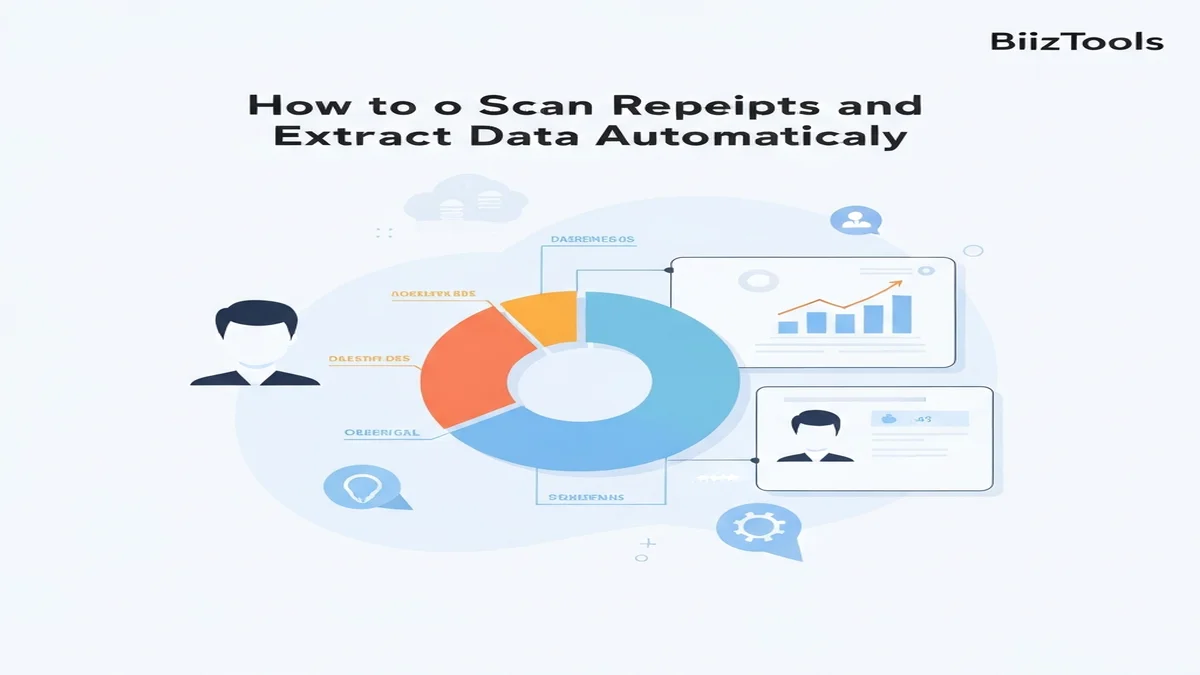
The idea behind scanning receipts and pulling out data might seem high-tech, but it's built on a simple concept. It uses something called OCR, which stands for Optical Character Recognition. Think of OCR as a smart reader that can "see" text in an image, just like your eyes do, but it understands it as computer data.
When you take a picture of a receipt with your phone or scan it with a scanner, the app turns that picture into a digital file. This file is just an image at first. Then, the OCR technology kicks in. It looks at the shapes of the letters and numbers on the receipt. It compares these shapes to its stored knowledge of what letters and numbers look like. For example, it recognizes a circle with a straight line through it as a "0" or an upside-down "V" as part of an "A."
Once the OCR identifies all the characters, it pieces them together to form words and numbers. But it doesn't just read everything. Smart receipt scanner apps are designed to look for specific types of information. They know to search for common patterns like dates (e.g., "07/15/2024" or "July 15, 2024"), currency symbols followed by numbers (e.g., "$123.45"), or common words like "Total," "Tax," "Subtotal," and business names.
For example, if you scan a receipt from "QuickStop Groceries" dated "07/20/2024" with a "Total: $78.99," the OCR will find these specific pieces of information. It will then organize them into fields like "Vendor," "Date," and "Total Amount." Some advanced receipt OCR systems can even pick out individual items purchased, like "Milk: $4.00" or "Bread: $3.50," if the receipt is clear enough.
This process happens very quickly, often in just a few seconds. The goal is to move the information from a physical, hard-to-manage piece of paper into a digital format that can be easily searched, sorted, and added to your accounting software. It's like having a personal assistant who reads all your receipts and types the important parts into a spreadsheet for you, without any mistakes.
Step-by-Step Guide to Extract Data from Receipts
Extracting data from your receipts automatically is simpler than it sounds. You don't need any special skills or expensive equipment. Here’s a clear guide on how to do it using a modern receipt scanner app.
Step 1: Choose and Install a Receipt Scanner App
First, you need the right tool. Many apps are available, some free, some paid. BiizTools offers a free BiizTools' Receipt Scanner that does exactly this. Go to your phone's app store or visit the BiizTools website and download the app. Make sure it's installed and ready to go.
Step 2: Prepare Your Receipt and Take a Clear Photo
Good input leads to good output. Make sure your receipt is as flat and smooth as possible. If it's crumpled, try to flatten it out. Place it on a plain, dark background to make the text stand out. Use good lighting; natural light is best. Avoid shadows falling on the receipt.
Open your receipt scanner app. Position your phone camera directly over the receipt. Most apps will show a frame or guide. Make sure all important parts of the receipt – the vendor name, date, items, and total – are within this frame. Tap the screen to focus, then take the picture. For long receipts, some apps allow you to take multiple photos that it stitches together.
Step 3: Review the Extracted Data
After you take the photo, the app will instantly process it using its OCR technology. In a few seconds, it will show you the data it "read" from the receipt. This usually includes:
- Vendor Name: The store or business where you made the purchase (e.g., "Office Depot").
- Date: The date of the transaction (e.g., "2024-07-25").
- Total Amount: The final amount you paid (e.g., "$157.80").
- Tax Amount: If listed separately (e.g., "$12.35").
- Currency: (e.g., "USD").
It might also pull out line items if the receipt is very clear.
Step 4: Correct Any Mistakes
No OCR is 100% perfect, especially with faded or blurry receipts. Always take a moment to review the extracted data. For example, if you scanned a receipt for a client lunch costing $125.50, and the app reads it as $12.50, you'll need to fix that. Most apps let you tap on a field to edit the number or text. This step is important to keep your records accurate. Compare the app's reading to the physical receipt to catch any errors.
Step 5: Categorize and Add Notes
Once the data is correct, you'll usually have an option to categorize the expense. This is where you assign it to a category like "Office Supplies," "Travel Expenses," "Meals & Entertainment," or "Utilities." This step is crucial for budgeting and tax purposes. For our $125.50 client lunch, you might categorize it as "Client Meeting Expense."
You can also add notes or tags. For example, you might add a note saying "Lunch with John Doe to discuss Q3 sales." This extra detail can be very helpful later if you need to remember specifics about a transaction.
Step 6: Save, Export, or Sync
After reviewing and categorizing, save the entry. The receipt image and its extracted data are now stored digitally. Most apps allow you to export your data. You can often export it as a CSV file (which opens in spreadsheet programs like Excel), a PDF, or integrate it directly with accounting software. This makes it easy to add all your scanned expenses to your overall financial records. For example, you might export all your July expenses to a spreadsheet to combine with other financial data.
Choosing the Right Receipt Scanner App
Picking the right receipt scanner app can make a big difference in how well you manage your expenses. With many options out there, knowing what to look for helps you find one that fits your needs. Here are the key things to consider:
OCR Accuracy
The main job of a receipt scanner is to read text from an image. How well it does this is critical. Look for an app with high OCR accuracy. This means it correctly identifies dates, totals, vendor names, and other details most of the time. If an app frequently misreads "1" as "7" or "0" as "8" on a clear receipt, it will create more work for you in corrections. A good app should correctly extract over 95% of the data on a clear receipt. If an app only gets 80% right, you'll spend more time fixing errors than if you had just typed it yourself.
Ease of Use
An app should be simple to use. The process of taking a picture, reviewing data, and categorizing should be quick and intuitive. Look for a clean, uncluttered interface. If you have to click through multiple confusing menus just to scan one receipt, you're less likely to use it regularly. The best apps let you scan a receipt in just a few taps. For example, if you buy coffee for $4.25 and need to scan the receipt, the process should take less than 30 seconds from opening the app to saving the data.
Export and Integration Options
What happens to your data after it's extracted? A good app should let you easily get your data out. Common export options include:
- CSV: For spreadsheets like Excel or Google Sheets. This is useful for combining data or creating custom reports.
- PDF: For archiving and sharing, keeping the receipt image with its data.
- Integration with Accounting Software: Some apps link directly to popular accounting tools like QuickBooks, Xero, or FreshBooks. This means your scanned expenses automatically appear in your accounting system, saving another step. For instance, if your app automatically sends a $30 office supply expense to your QuickBooks account, you don't have to manually enter it there.
Cloud Storage and Backup
Your receipts hold important financial data. Make sure the app offers secure cloud storage. This means your receipts are backed up online, so you don't lose them if your phone breaks. It also means you can access your receipts from different devices, like your computer or another phone. Check if the app keeps your data private and secure.
Cost and Features
Many receipt scanner apps offer a free version with basic features. These might be great for personal use or very small businesses. Paid versions usually offer more features, like unlimited scans, advanced reporting, or better integrations. Decide what features are essential for you. A free tool like BiizTools' Receipt Scanner might be perfect if you just need to capture basic expense data and export it, while a business with hundreds of receipts a month might invest in a paid plan for deeper integration.
Offline Capabilities
Sometimes you might be in an area with no internet connection, like during travel. A good app should let you scan receipts even when you're offline. It should then sync the data to the cloud once you reconnect to the internet. This ensures you don't miss capturing any expenses simply because of a bad signal.
Common Problems and How to Fix Them
Even with the best receipt scanner apps, you might run into a few snags. Understanding these common issues and knowing how to fix them will help you get the most out of automatic data extraction.
Problem 1: Blurry or Low-Quality Photos
Issue: The app struggles to read text because the picture you took is out of focus, shaky, or too dark. This often leads to incorrect or missing data. For example, a $75.00 total might be read as $7.50 because the zeros are blurry. Fix: Always ensure good lighting. Use natural daylight if possible, or a well-lit room. Place the receipt on a flat surface, ideally a dark one to create good contrast. Hold your phone steady and tap the screen to focus before taking the picture. If the first attempt is blurry, simply delete it and retake a new, clearer photo.
Problem 2: Faded or Crumpled Receipts
Issue: Older receipts, especially thermal paper ones, tend to fade over time. Crumpled receipts also make it hard for OCR to read the text. A receipt for a coffee from three months ago might have a faded total of "$5.25" that looks more like "$5.7$" to the scanner. Fix: Scan receipts as soon as you get them. This prevents fading. For crumpled receipts, try to smooth them out as much as possible before scanning. You can gently iron them on a low setting (without steam!) between two pieces of paper to flatten them without damaging the print further. If the print is too faded, you might have to manually enter some of the data that the app misses.
Problem 3: Missing Key Data
Issue: The app might extract some details but completely miss others, like the date or the vendor name. For example, it might get the $25.00 total correct, but completely ignore the "Pizza Palace" name. Fix: Always double-check the extracted information against the physical receipt. If something is missing, most apps allow you to manually add or edit fields. Simply type in the missing vendor name, date, or any other important detail. It's quicker to add a missing field than to re-scan and hope for a perfect read.
Problem 4: Incorrect Data Extraction
Issue: The app reads a number or word incorrectly. This can happen with unusual fonts, complex layouts, or slight blurriness. For instance, a total of "$13.99" might be read as "$18.99." Fix: This is similar to missing data – manual correction is your best friend. After the app processes the receipt, carefully compare the extracted numbers and text with the original receipt. If you spot an error, tap on the incorrect field and type in the right information. Doing this small check saves you from bigger problems later, especially during tax season.
Problem 5: Very Long Receipts
Issue: Some receipts, especially from grocery stores, can be very long. Your phone's camera might not be able to capture the entire receipt in one shot, leading to cut-off information. Fix: Many advanced receipt scanner apps have a "multi-page" or "stitch" feature. This allows you to take several photos of different sections of a long receipt, and the app will combine them into one complete digital receipt. If your app doesn't have this, try folding the receipt neatly to focus on the key sections like the vendor, date, and total, or simply ensure your photo captures all the critical financial information, even if some detailed line items are missed.
Frequently Asked Questions
Q1: Is scanning receipts legal for tax purposes?
Yes, in many countries, including the U.S. (IRS), Canada, and the UK, digital copies of receipts are accepted for tax purposes. You can usually throw away the paper receipt once you have a clear digital scan with extracted data. Always check your local tax authority's latest guidelines to be sure.
Q2: Can I scan old receipts that are faded?
You can try, but the success rate for data extraction might be lower. Faded or crumpled receipts are harder for OCR technology to read accurately. It's always best to scan receipts as soon as possible to ensure the best quality and most accurate data extraction.
Q3: What's the difference between an invoice and a receipt for scanning?
An invoice is a request for payment, detailing goods or services provided. A receipt is proof of payment already made. Both can be scanned, but they serve different purposes for your records. Learn more about the invoice vs receipt.
You've now learned how to turn a mountain of paper receipts into organized, searchable digital data. This simple change saves you hours each month, cuts down on frustrating errors, and makes financial tracking much easier. Imagine knowing exactly where every dollar goes without the manual hassle.
To start scanning receipts extract data automatically today, try BiizTools' free BiizTools' Receipt Scanner. It's designed to be simple, fast, and accurate, helping you keep your finances in order. You can also use our expense report template to organize your expenses even further. Stop wasting time on manual entry and start focusing on what truly matters for your business or personal finances.
Frequently Asked Questions
Scanning receipts automatically saves valuable time spent on manual sorting and data entry, potentially over 100 hours annually for small businesses. It frees you to focus on growth. It also drastically reduces human errors, ensuring more accurate financial records and maximizing potential tax deductions.
Modern tools leverage Optical Character Recognition (OCR) and Artificial Intelligence (AI) to read and interpret information from receipt images. This technology identifies key details like vendor, date, and amount, then automatically extracts and categorizes them, eliminating the need for manual typing and accelerating expense tracking.
Automating receipt management offers two critical benefits: significant time savings by eliminating manual data entry, and vastly improved accuracy. This reduces costly human errors, helps avoid missed deductions, and provides real-time insights into your spending patterns, ultimately streamlining your entire financial operation.
Want to categorize your expenses automatically?
Try our AI-powered Expense Categorizer. Upload your transactions and get instant categorization.
Categorize Expenses