TD Bank Statement to Excel: Easy PDF Conversion Guide
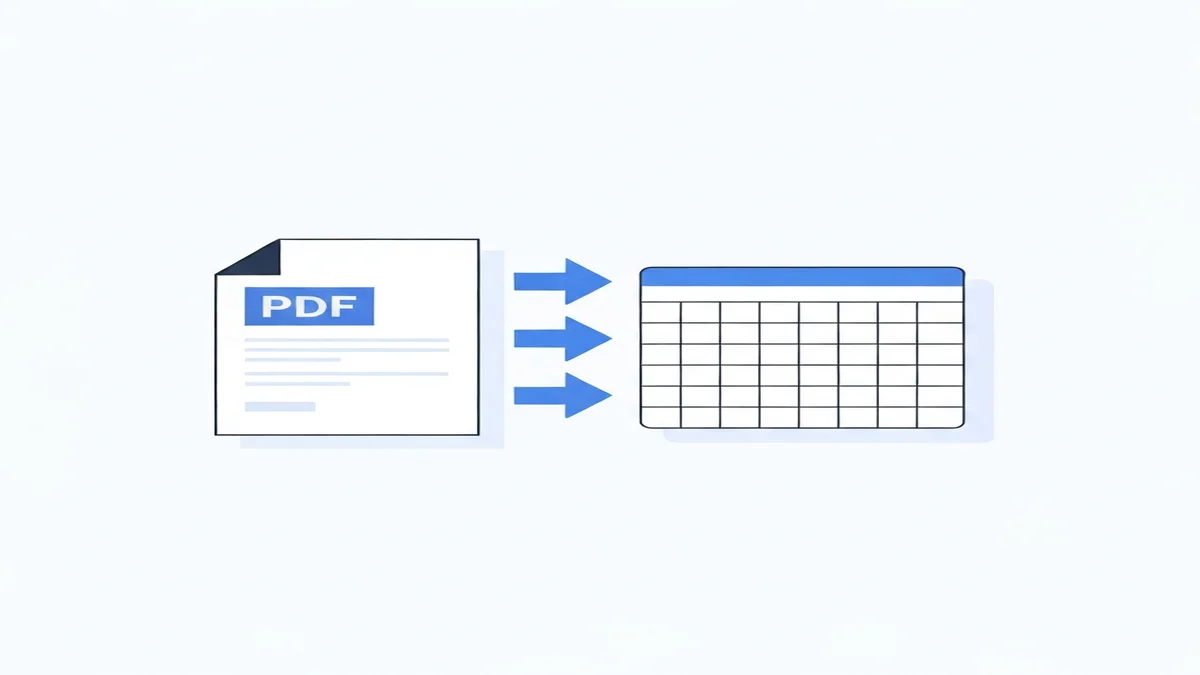
Converting your TD Bank statement to Excel helps you understand your money better. You can see all your spending, track your income, and prepare for taxes. This guide shows you how to turn your TD Bank PDF statements into easy-to-use Excel files.
You no longer need to spend hours writing down every transaction. Learning this simple process saves you time and reduces mistakes. We'll cover how to get your statements and convert them quickly.
Why Convert Your TD Bank Statement to Excel?
Turning your TD Bank statement into an Excel file offers many practical benefits. It moves your financial data from a static PDF into a flexible spreadsheet. This makes it much easier to manage your money.
First, budgeting becomes clearer. Imagine you want to know how much you spent on food last month. If you have 150 transactions in a PDF, finding all the food purchases is hard. In Excel, you can quickly filter by "Grocery" or "Restaurant" and see your total. For example, if you spent $450 on groceries and $300 on dining out, Excel shows you this sum instantly. This helps you plan to spend $50 less next month.
Second, Excel simplifies tax preparation. Many people need to track business expenses or charitable donations. A PDF statement can make this a slow process. With your data in Excel, you can add a column to categorize expenses like "Business Travel" or "Office Supplies." You might easily find $800 in deductible business expenses you missed before. This can save you money and time when tax season arrives.
Third, it helps you spot errors or unusual activity. Sometimes, mistakes happen, or you might see a charge you don't recognize. Scrolling through pages of PDF for a $29 unknown charge is frustrating. In Excel, you can quickly sort transactions by amount or description. This makes it easier to find and question any suspicious items, like a forgotten subscription charge for $15 you no longer use.
Finally, Excel helps you see trends over time. You can compare spending from one month to the next. Did your electricity bill jump from $85 in October to $140 in November? Excel helps you notice these changes right away. You can then investigate why, maybe due to more heating use or a rate change. This way, you stay in control of your money and make smarter choices.
How to Download Your TD Bank Statement (PDF)
Before you can convert your TD Bank statement to Excel, you need to get the statement as a PDF file. TD Bank makes this process simple through their online banking portal. You can access statements for your checking, savings, and credit card accounts.
Start by going to the TD Bank website or opening their mobile app. Log in to your account using your username and password. Make sure you are using a secure internet connection. If you have trouble logging in, use the "Forgot Username" or "Forgot Password" links.
Once you are logged in, look for a section labeled "Statements" or "Documents." This is usually found in the main menu or under your account details. Click on this option to see a list of your available statements. You might see options for different account types, like "Checking," "Savings," or "Credit Card."
Next, select the account for which you want to download a statement. Then, choose the specific statement period you need. For example, you might select "January 2024" or "Quarter 1 2024." TD Bank usually lets you view statements from the past few years.
After selecting the statement, you will usually see a button to "Download PDF" or "View Statement." Click this button to save the PDF file to your computer or device. It's a good idea to save it in a place you can easily find, like your "Documents" folder. Make sure the file name clearly shows what it is, such as "TD_Checking_Jan2024.pdf."
Sometimes, your PDF statement might be password protected. TD Bank often uses your Social Security Number (SSN) or a part of it as the password for security reasons. Check the instructions provided by TD Bank if you cannot open your downloaded statement. Having your PDF statement ready is the first step to converting it into a useful Excel file.
Two Ways to Convert TD Bank Statement to Excel
You have two main methods for turning your TD Bank PDF statement into an Excel file. Each method has its own benefits and drawbacks. Understanding both will help you pick the best one for your needs.
Method 1: Manual Copy-Paste
The first method is to manually copy and paste the data from your PDF statement into an Excel spreadsheet. This way costs nothing and doesn't require extra tools.
Here's how it works: Open your TD Bank PDF statement. Select the transactions you want to copy. You might need to highlight rows of data, including dates, descriptions, and amounts. Then, right-click and choose "Copy" or use Ctrl+C (or Cmd+C on Mac).
Next, open a blank Excel sheet. Click on a cell, usually A1, and then right-click and select "Paste" or use Ctrl+V (or Cmd+V). The data will appear in your Excel sheet.
However, this method often creates a mess. Dates, descriptions, and amounts might all paste into a single cell, or they might be in the wrong columns. For instance, a transaction that shows "01/15/2024 Starbucks Coffee $5.50" in the PDF might paste as one long string in cell A1. You would then need to manually separate "01/15/2024" into one column, "Starbucks Coffee" into another, and "$5.50" into a third. This takes a lot of time and effort. A single page with 30 transactions could take 30 minutes to clean up. A 5-page statement with 150 transactions could easily take 2-3 hours. It's also easy to make mistakes when moving numbers by hand.
Method 2: Using an Online Bank Statement Converter
The second and much more efficient way is to use an online bank statement converter. These tools are designed to read PDF bank statements and automatically pull out the data into a structured Excel file. They handle the hard work of organizing the information. If you want to convert bank statement PDF to Excel efficiently, this is the way to go.
The general process is simple: You upload your TD Bank PDF statement to the tool's website. The tool then uses smart technology to identify the dates, descriptions, and amounts. It automatically places each piece of information into its correct column in an Excel sheet. This means you don't have to copy, paste, or manually clean up any data. The tool delivers a neat, ready-to-use Excel file in minutes.
This method saves you a lot of time and prevents errors. Instead of spending hours fixing a messy spreadsheet, you get an accurate file almost instantly. For example, if you have a 10-page TD Bank statement, a converter can process it in less than 5 minutes. Trying to do that manually would take several hours of tedious work. This makes online converters a powerful option for anyone needing to work with their financial data regularly. Even for Chase statement conversion, a similar tool approach is highly recommended for speed and accuracy.
Using a Tool to Convert TD Bank Statement PDF to Excel
Using an online tool to convert your TD Bank statement from PDF to Excel is the fastest and most accurate method. These tools are built to handle the complex layouts of bank statements. They turn jumbled PDF data into clean, organized Excel spreadsheets.
Here’s a step-by-step guide on how to use such a tool:
First, make sure you have your TD Bank statement saved as a PDF file on your computer. You downloaded this in the previous step. Remember where you saved it, like in your "Downloads" folder.
Next, open your web browser and go to a reliable online bank statement converter. Look for one that specializes in financial documents.
Once on the tool's website, you will usually see a clear button like "Upload PDF" or "Choose File." Click this button. A window will pop up, letting you browse your computer's files. Find your TD Bank PDF statement and select it. Then, click "Open" or "Upload."
The tool will then start processing your PDF file. This usually takes a minute or two, depending on the file size and how busy the website is. The tool reads every transaction, looking for dates, descriptions, withdrawal amounts, and deposit amounts. It uses smart technology to understand the different sections of your bank statement.
After the conversion is complete, the tool will provide a link to download your new Excel file. Click "Download" to save the Excel spreadsheet to your computer.
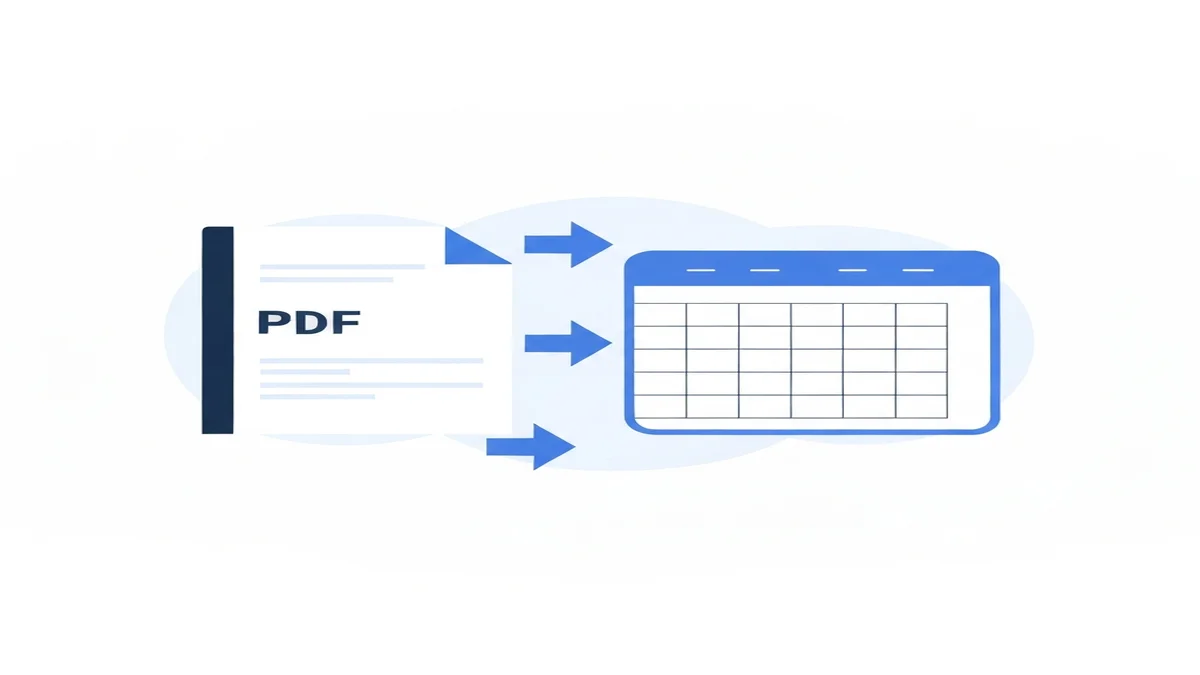
Open the downloaded Excel file. You will see your TD Bank transactions neatly arranged in columns. Typically, you'll find columns for: * Date: Each transaction date in its own cell. * Description: A clear description of the transaction. * Withdrawal/Debit: Amounts spent or taken out of your account. * Deposit/Credit: Amounts received or put into your account. * Balance: The running balance of your account after each transaction.
This organized format saves you a huge amount of time. What might take hours to manually copy and clean up would only take a few minutes with a converter. You get an accurate, ready-to-use file without the effort. This means you can quickly move on to analyzing your finances instead of wasting time on data entry. The convenience and precision make online converters a smart choice for anyone dealing with bank statements.
Tips for Working with Your Converted TD Bank Data
Once you have your TD Bank statement in Excel, you can do much more than just look at it. Excel offers powerful features to help you understand your money better. These tips will help you make the most of your converted data.
First, categorize your transactions. This is one of the most useful steps. Add a new column next to your transaction descriptions, perhaps titled "Category." Go through each item and assign it a category. For example, "Starbucks" might be "Coffee," "Walmart" could be "Groceries" or "Household," and "TD Mortgage" is "Housing." You might have 10-15 main categories like "Food," "Utilities," "Transport," "Income," and "Savings." This helps you quickly see where your money goes.
Second, use simple Excel formulas to sum up your spending. Once categorized, you can easily add up totals for each group. For instance, to find out how much you spent on "Food," you can filter by that category and use the SUM() formula. If your "Withdrawal" amounts are in column C, you can type =SUM(C2:C100) in a cell to add up all withdrawals in that range. This tells you your total spending for a specific category or period. You might find you spent $650 on food last month.
Third, filter and sort your data. Excel's filter function is incredibly useful. Click on the header row and then click the "Filter" button (it looks like a funnel). Now you can click the dropdown arrow next to any column header. Want to see all transactions over $100? Filter the "Withdrawal" column. Want to find all ATM withdrawals? Filter the "Description" column for "ATM." This helps you quickly pinpoint specific types of spending or income.
Fourth, track your monthly budget. If you have a budget for each category (e.g., $500 for food, $150 for utilities), you can create simple comparisons. Add a column for "Budget Amount" next to your "Category Total" column. This allows you to instantly see if you're under or over budget for each area. For example, if your "Utilities" category total is $120 but your budget is $100, you know you spent an extra $20.
Finally, consider making simple charts. Excel can turn your categorized data into bar charts or pie charts. A pie chart showing your spending by category gives you a quick visual of where your money goes. You might see that "Housing" makes up 40% of your expenses and "Food" is 25%. This visual aid helps you quickly understand your financial picture. For more details on what each part of your statement means, check out our guide on how to read a bank statement.
Frequently Asked Questions
Is it safe to convert my TD Bank statement online?
Using a trusted online tool to convert your TD Bank statement is generally safe. Good tools use strong encryption to protect your data during upload and conversion. Always choose a reputable service that clearly states its privacy policy and security measures. Avoid sites that seem suspicious or ask for unnecessary personal details beyond the statement itself.
Can I convert other bank statements besides TD?
Yes, most quality online bank statement converters can handle statements from many different banks, not just TD Bank. They are built to recognize common layouts used by various financial institutions. This means you can use the same tool to convert statements from other banks like Chase, Bank of America, Wells Fargo, and more, making it a versatile solution for all your financial data needs.
What if my PDF statement is password protected?
If your TD Bank PDF statement is password protected, you must enter the correct password before the conversion tool can read it. Some online converters have a field where you can enter the password during the upload process. If not, you might need to remove the password protection from the PDF file using a separate PDF editor before uploading it to the converter.
Converting your TD Bank statement to Excel gives you better control and understanding of your finances. You can move beyond simply viewing transactions to actively managing and analyzing your money. Whether for budgeting, tax preparation, or simply tracking your spending, Excel is a powerful ally.
Don't spend hours on manual data entry or struggle with hard-to-read PDFs. Get started today by using the BiizTools Bank Statement Converter. It's a quick, free, and accurate way to turn your TD Bank PDFs into organized Excel spreadsheets, giving you back valuable time and peace of mind.
Frequently Asked Questions
Converting your TD Bank statement to Excel helps you easily track spending, budget more effectively, and prepare for taxes. It transforms static PDF data into a flexible format, allowing you to quickly filter transactions, spot errors, and gain insights into your financial habits, ultimately saving time and reducing mistakes.
Excel makes budgeting clearer by allowing you to categorize and total expenses like food or bills instantly. Instead of manually scanning PDF pages, you can filter transactions by category, see exactly where your money goes, and plan future spending adjustments easily, such as aiming to reduce dining out expenses next month.
Yes, converting your statement to Excel significantly simplifies tax preparation. You can add columns to categorize business expenses or charitable donations, making it easy to identify deductible items. This organized data saves you time during tax season and helps ensure you don't miss any valuable deductions, potentially saving you money.
Ready to convert your bank statement?
Try our free Bank Statement to Excel converter. Upload your PDF and get a clean spreadsheet in seconds.
Convert Now