Wells Fargo Statement to Excel: Your Easy Guide to Financial Data
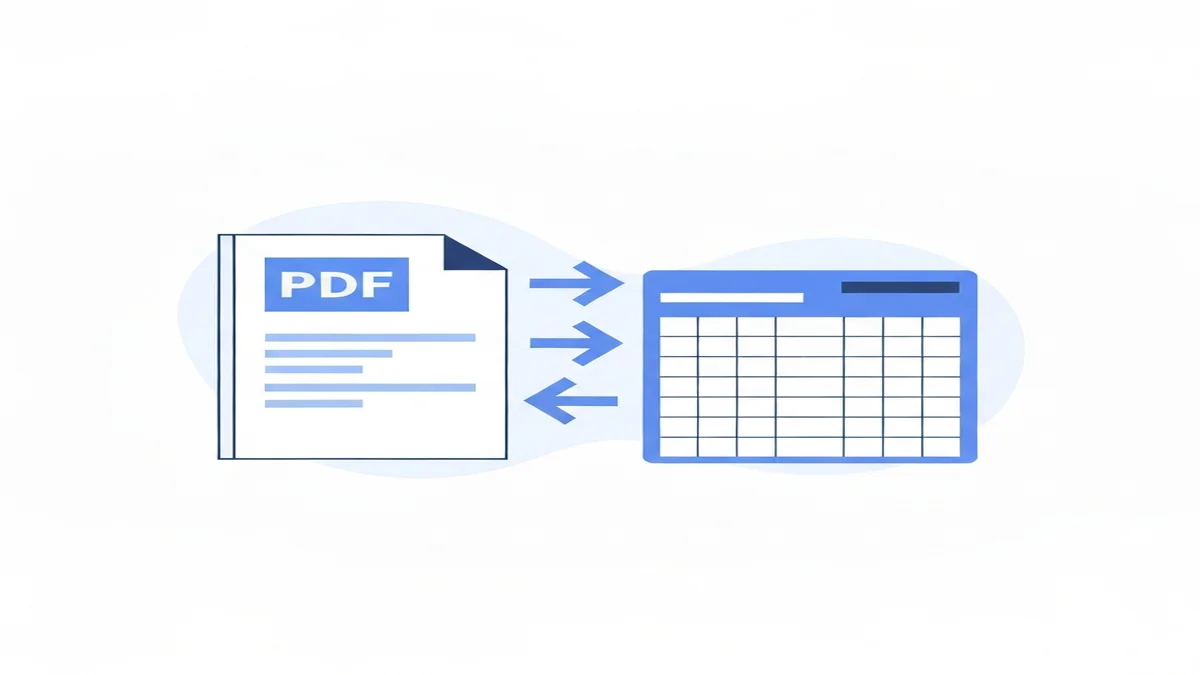
Getting your Wells Fargo bank statement into an Excel spreadsheet can seem like a puzzle. But having your financial data in Excel makes managing money much simpler. You can track spending, prepare taxes, and keep a close eye on your budget.
This guide will show you how to move your Wells Fargo transactions from a PDF document straight into an organized Excel file. Whether you manage personal finances or run a small business, this process saves time and reduces stress. We will cover everything from downloading your statement to using a helpful tool.
Why Put Your Wells Fargo Statement in Excel?
Putting your Wells Fargo statement into Excel offers many advantages. It turns a static document into a flexible tool for your money. This makes financial tasks easier and gives you clearer insights.
First, Excel helps with better budgeting. You can quickly see where your money goes each month. For example, if you spend $750 on groceries and $600 on dining out, Excel helps you see these numbers clearly. You can then make choices to save money if needed. This clear view helps you stick to your financial goals.
Second, tax preparation becomes much simpler. Instead of flipping through pages, you can search and sort transactions in Excel. Imagine needing to find all your business software subscriptions for tax deductions. In Excel, you could quickly filter for "software" and find $1,500 in eligible expenses in seconds. This saves hours during tax season.
Third, you can easily spot errors or fraud. Sometimes, mistakes happen, or unauthorized charges appear. With your data in Excel, you can sort by amount or payee to quickly identify unusual transactions. For instance, you might notice a $125 charge from a store you never visited, prompting you to investigate. This helps protect your money.
For small business owners, Excel is a powerful tool. It helps you monitor your business's cash flow. You can track all income and expenses, seeing exactly how much money is coming in and going out. For example, you might see $3,000 in monthly sales but also $2,200 in recurring expenses. This helps you make smart business decisions. It also makes it easier to track specific categories like advertising costs or supplier payments.
Finally, Excel lets you analyze your spending habits over time. You can create charts and graphs that show trends. Perhaps your utilities cost $150 in winter but only $70 in summer. Seeing this trend helps you plan. You can also track specific spending. For instance, you might track all purchases from "Office Supply Store" to see you spent $400 last quarter on office supplies. This level of detail is hard to get from a simple PDF.
How to Get Your Wells Fargo Statement PDF
Before you can convert your Wells Fargo statement to Excel, you need the statement itself. Wells Fargo makes it easy to download your statements as PDF files from their online banking portal. This process is secure and straightforward.
Here are the steps to get your Wells Fargo statement PDF:
- Log in to Wells Fargo Online: Open your web browser and go to the official Wells Fargo website. Enter your username and password to log in to your account. Make sure you are on a secure connection, usually indicated by a padlock icon in your browser's address bar.
- Go to "Accounts" or "Statements & Documents": Once logged in, look for a menu option labeled "Accounts," "Statements," "Documents," or similar. This is usually found in the main navigation bar or a sidebar. Wells Fargo often groups all your statements and important documents in one place.
- Select the Account and Period: You will likely see a list of your Wells Fargo accounts, such as checking, savings, or credit cards. Choose the specific account for which you want to download a statement. After selecting the account, you will need to pick the statement period. For example, you might select "July 2023" or "Q3 2023." Be specific about the month or date range you need. You can usually go back several years to retrieve older statements.
- Download the PDF: After selecting the account and period, you should see an option to "View Statement" or "Download Statement." Click this option. The statement will typically open in a new browser tab or download directly to your computer as a PDF file. Save the PDF to a location on your computer where you can easily find it, like your "Documents" folder. A common file name might be "WFStatement_Checking_2023-07.pdf."
It's important to download the correct statement. Double-check that the account number and the statement dates match what you need. If you need multiple statements, you will repeat these steps for each month or period. Always ensure you are on the official Wells Fargo website to protect your personal information. Downloading statements directly from the bank's secure site is the safest way to get your data.
Converting Wells Fargo Statement to Excel: Manual Method
One way to get your Wells Fargo transactions into Excel is by doing it manually. This method doesn't require any special software, just your PDF statement and Excel. However, it can be very time-consuming and prone to errors, especially if you have many transactions.
Here's how to do it manually:
- Open Your Wells Fargo PDF Statement: Open the PDF file you downloaded from Wells Fargo. You can use Adobe Reader or any PDF viewer on your computer.
- Select and Copy Transactions: Scroll through the PDF to find the transaction list. Carefully select the text for all your transactions. This includes the date, description, and amount. You might need to select each line or section individually if the PDF formatting is complex. Once selected, right-click and choose "Copy" or press
Ctrl+C(Windows) /Cmd+C(Mac). - Paste into Excel: Open a new, blank Excel spreadsheet. Click on cell A1, right-click, and choose "Paste" or press
Ctrl+V/Cmd+V. All the copied text will likely paste into one column, or perhaps a few columns, but not in a neatly organized way. - Clean and Organize the Data: This is where the manual work really begins.
- Split Data: Your transactions will likely be messy. A single transaction might be spread across multiple lines in Excel. You'll need to manually cut and paste parts of the transaction into their correct columns. For example, the date might be in one cell, the description in another cell below it, and the amount in a third.
- Separate Columns: If everything pasted into one column, you'll need to use Excel's "Text to Columns" feature. Select the column with all the data. Go to the "Data" tab in Excel and click "Text to Columns." You'll choose "Delimited" and then select a delimiter like a space or a specific character that separates your data points in the PDF. This helps split the date, description, and amount into different columns. For example, a transaction like "07/15/2023 Starbucks $5.50" can be split by space.
- Format Dates and Numbers: Dates might paste as text, not actual dates. Amounts might include currency symbols (like "$") or commas, which Excel won't recognize as numbers. You'll need to remove these symbols using "Find and Replace" (Ctrl+H) or specific Excel formulas. For example, replace "$" with nothing, and replace "," with nothing. Then, you can format the column as "Currency" or "Number."
- Identify Debits and Credits: Wells Fargo statements often show withdrawals and deposits differently, sometimes with a minus sign for debits. You'll need to create separate columns for "Debit" and "Credit" and move the correct amounts into each. This often means carefully reviewing each transaction.
The manual method is free, but it takes a lot of time and effort. For a statement with 100 transactions, this process could easily take 2-3 hours to get everything perfect. You risk making mistakes when copying, pasting, or formatting the data. This method is generally only practical for very short statements with a handful of transactions. For anything more, an automated solution is much better.
Using Online Tools to Convert Wells Fargo PDF to Excel
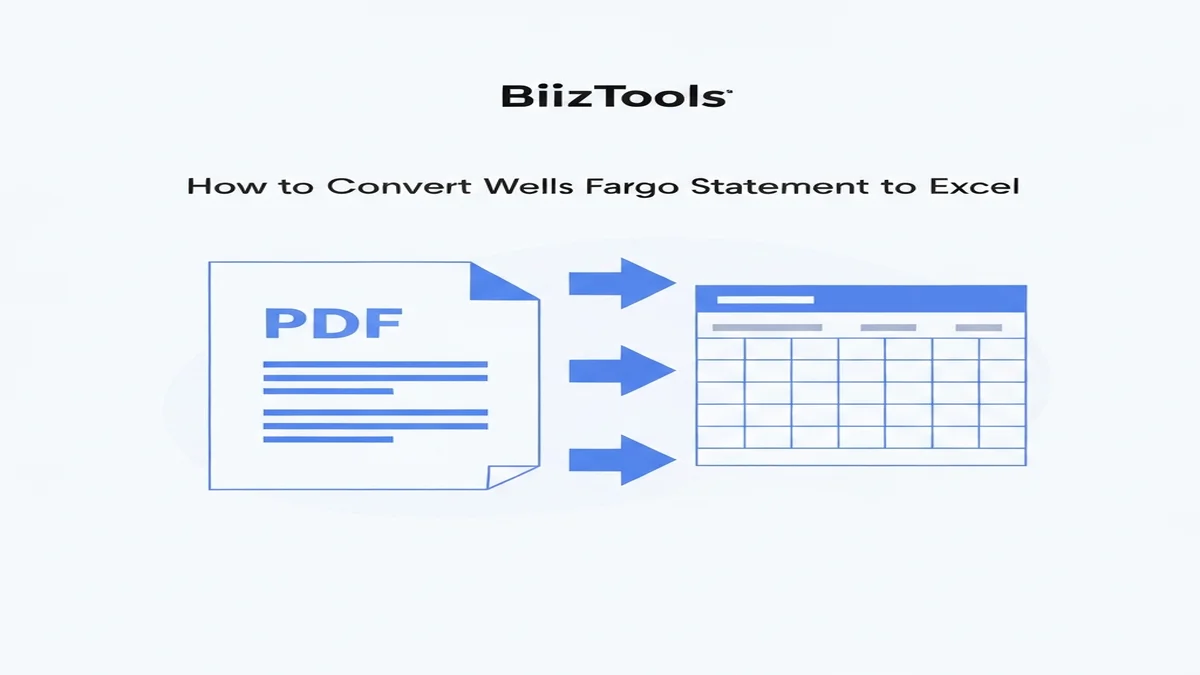
The fastest and most accurate way to convert your Wells Fargo PDF statement into an Excel file is by using a dedicated online tool. These tools are designed to read the data from your PDF and put it into a clean, structured Excel format automatically. This saves you hours of manual work and greatly reduces the chance of errors.
Here’s how these tools generally work:
- Choose a Tool: Select a reliable online bank statement converter. There are many options available, some free and some paid. Look for tools that specifically mention bank statement conversion and have good reviews.
- Upload Your PDF: You will go to the tool's website and find an "Upload" button. Click this button and select your Wells Fargo PDF statement from your computer. The tool will then upload the file to its system.
- The Tool Processes the Data: Once uploaded, the online tool uses smart technology to read the information from your PDF. It identifies the dates, transaction descriptions, and amounts. It knows how to handle different formats and layouts often found in bank statements, including those from Wells Fargo.
- Download Your Excel File: After a short processing time, usually just a few seconds or minutes, the tool will provide a link to download your converted file. This file will be in a
.xlsxor.csvformat, which opens directly in Excel.
The advantages of using an online converter are significant:
- Speed: What might take you hours manually, an online tool does in seconds. Imagine converting a 30-page statement with hundreds of transactions in under a minute. This is a huge time-saver compared to the manual copy-pasting method.
- Accuracy: These tools are built to extract data precisely. This means fewer typos, missed transactions, or incorrect number formats. You get clean data you can trust. For example, a $1,234.56 transaction will appear exactly as $1234.56 in Excel, not accidentally typed as $123.45.
- Clean Format: The output Excel file is usually well-organized. You'll typically find separate columns for Date, Description, Debit, and Credit. This makes the data immediately usable for budgeting, analysis, or import into other accounting software. You won't have to spend time cleaning up messy cells.
- Handles Complexities: Bank statements can have tricky layouts, but good converters can handle them. This includes splitting single lines into multiple columns and correctly identifying debit and credit amounts. They also work for various banks, not just Wells Fargo. For instance, you could use the same type of tool for a Bank of America statement conversion or a different financial institution.
When choosing an online tool, consider security. Ensure the website uses secure connections (HTTPS) and has a clear privacy policy. Most reputable tools do not store your financial data after conversion. You can learn more about how these types of tools work to convert bank statement PDF to Excel in detail. Using an online converter is the smartest choice for anyone needing to regularly move Wells Fargo statement data into Excel.
What to Do After Converting to Excel
Once your Wells Fargo statement is successfully converted into an Excel file, the real work of financial management begins. Now you have a powerful, editable dataset. Here are the next steps you can take to make the most of your Excel file:
- Review the Data for Accuracy: Before doing anything else, quickly scan the Excel sheet. Check a few random transactions to make sure the dates, descriptions, and amounts are correct. Confirm that debits and credits are in their proper columns. If you used an automated tool, errors are rare, but a quick check ensures everything is perfect.
- Categorize Your Expenses: This is a crucial step for budgeting and understanding your spending. Add a new column to your Excel sheet, perhaps called "Category." Go through each transaction and assign it a category like "Groceries," "Dining Out," "Utilities," "Transportation," "Rent," "Income," or "Business Supplies." For example, a transaction from "Starbucks" would go under "Dining Out," and a payment to "Electric Co." would be "Utilities." This step transforms raw data into actionable insights. To make this process even better, learn how to categorize business expenses effectively.
- Create a Simple Budget: With categorized data, you can build a basic budget directly in Excel. Use SUM functions to add up all expenses for each category. For instance, you can total all "Groceries" spending to see you spent $550 last month. Compare these totals to your budget goals.
- Track Income and Expenses: Keep your Excel sheet updated to form a continuous financial ledger. You can add new converted statements each month. This gives you a clear, ongoing view of your cash flow. You can see if your income is consistently higher than your expenses.
- Look for Spending Trends: Use Excel's filtering and sorting features to find patterns. Filter for "Dining Out" to see all restaurants you visited. Or sort by "Amount" to see your largest transactions. This helps you identify areas where you might be spending more than you realize. For example, filtering by "Gas Station" might show you spent $300 on fuel in a particular month.
- Prepare for Taxes or Business Reporting: If you use the statement for business, mark tax-deductible expenses in a separate column. You can filter these out easily when tax season comes. For personal finances, identify significant expenditures for review. This organized data makes tax time less stressful and more efficient.
Your converted Wells Fargo statement in Excel is more than just a list of transactions; it's a foundation for better financial decisions. Spend some time organizing it, and you'll gain a much clearer picture of your money.
Converting your Wells Fargo statement to Excel doesn't have to be a headache. Whether you choose the careful manual method or an efficient online tool, having your financial data in Excel gives you powerful control. You can track, analyze, and manage your money much more effectively.
FAQ
How secure is it to convert my Wells Fargo statement online?
Choose trusted tools with strong security features like SSL encryption. Reputable services do not store your financial PDFs after conversion and have clear privacy policies. Never share your Wells Fargo login details with any conversion tool; only the PDF itself is needed.
Can I convert multiple Wells Fargo statements at once?
Some advanced online tools allow batch processing. You can upload several Wells Fargo PDF statements at once, from different months or accounts. These tools can then convert them into separate or combined Excel files, saving you significant time when managing many documents.
Will the converted Excel file include all transaction details?
Yes, a good bank statement converter extracts all key details. This includes the date, transaction description, and the exact amount. It also typically separates debits and credits into distinct columns. However, handwritten notes or stamps on the original PDF will not be transferred to Excel.
For quick, accurate, and easy conversion of your Wells Fargo statements and other bank PDFs, check out BiizTools' Bank Statement Converter at Bank Statement Converter. It makes getting your data into Excel simple, so you can focus on managing your money.
Frequently Asked Questions
Converting your Wells Fargo statement to Excel offers many advantages, including better budgeting by seeing where your money goes, simplified tax preparation through easy searching and sorting, and faster detection of errors or fraud. It transforms static data into a dynamic financial management tool.
Excel provides a clear view of your spending, making budgeting easier. You can quickly categorize transactions, see spending patterns like total groceries or dining out expenses, and make informed choices to save money and stick to your financial goals effectively. This clarity aids financial discipline.
Absolutely. With your Wells Fargo data in Excel, you can effortlessly search and filter transactions for tax deductions, like business expenses. This saves significant time compared to manually reviewing PDF statements, making tax season much less stressful and more efficient by quickly finding eligible expenses.
Ready to convert your bank statement?
Try our free Bank Statement to Excel converter. Upload your PDF and get a clean spreadsheet in seconds.
Convert Now