PNC Bank Statement to Excel: Easy Conversion Guide
Getting your PNC bank statement data into Excel can seem like a tough job. Maybe you want to track your spending, prepare for taxes, or just keep better records. Copying numbers by hand or typing them into a spreadsheet takes a lot of time and can lead to mistakes.
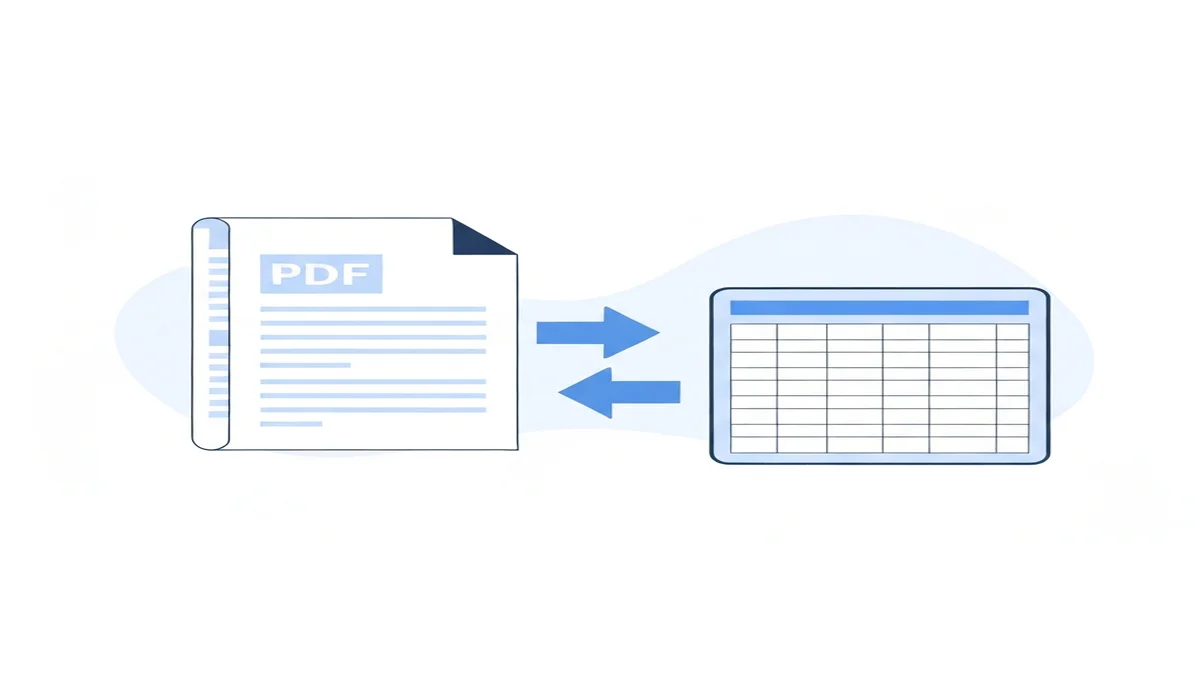
But there's an easier way. This guide will show you how to quickly and accurately convert your PNC bank statement to Excel. You'll learn how to get your statements from PNC and turn them into a clear, organized spreadsheet, ready for your financial tasks.
Why Convert Your PNC Bank Statement to Excel?
Turning your PNC bank statement into an Excel file makes managing your money much simpler. When your transactions are in a spreadsheet, you can do a lot more than just look at them on paper. This helps you understand your money better and make smarter choices.
For example, imagine you spent $450 on food last month. If this is spread across 30 different transactions in a PDF, it's hard to see the total. In Excel, you can quickly add up all those food costs. You can instantly see that you paid $80 for groceries on May 5th, $35 for dining out on May 10th, and $20 for a coffee on May 12th. Adding these up helps you understand where your money goes.
Excel also makes tax time much less stressful. You can easily find and sum up all your business expenses or charitable donations. For instance, if you made 15 donations totalling $1,200, finding them in a PDF takes time. In Excel, you can filter by "Donation" and get the total in seconds. This saves you hours of searching through paper or PDF files.
Beyond taxes, Excel helps you spot trends in your spending. You might notice your electricity bill jumped from $90 to $140 in two months. Or maybe your subscription services total $75 each month, which you hadn't realized. With your data in Excel, you can sort by category, date, or amount to find these patterns. This makes it easier to cut costs or adjust your budget where needed. It turns raw data into useful information for your financial health.
How to Download Your PNC Bank Statement (PDF or CSV)
Before you can convert your PNC bank statement to Excel, you first need to get the statement itself. PNC offers a simple way to download your statements through their online banking platform. You can usually choose to download your statements as a PDF file or sometimes as a CSV (Comma Separated Values) file.
Here's a step-by-step guide to downloading your PNC bank statement:
- Log In to PNC Online Banking: Open your web browser and go to the official PNC Bank website. Enter your username and password to log into your account. Make sure you are on a secure connection.
- Find Your Account: Once logged in, you will usually see a summary of all your PNC accounts. Click on the specific checking or savings account for which you want to download statements. For instance, if you want your main checking account data, select that account.
- Navigate to Statements or Documents: Look for a section often labeled "Statements," "Account Activity," "Documents," or "E-Statements." This might be in a sidebar menu, at the top of the page, or within the details of your chosen account. Click on this option to proceed.
- Select Statement Type and Date Range: You will typically be asked to choose the type of statement (e.g., monthly statement, year-end summary) and the specific date range. For example, you might select "Monthly Statement" and then choose "October 2023" from a dropdown menu, or pick a custom range like "January 1, 2023, to December 31, 2023."
- Choose Download Format (PDF or CSV):
- Download PDF: Most often, the primary option for official bank statements is a PDF file. This is great for official records and viewing. If you select PDF, the file will download directly to your computer. For example, you might download "PNC_Statement_Oct2023.pdf." You will then need to convert this convert bank statement PDF to Excel to use it in Excel.
- Download CSV: Sometimes, PNC also offers an option to download your transaction history directly as a CSV file. This is often found under "Account Activity" or "Export Transactions." A CSV file is already in a spreadsheet-friendly format, making it much easier to open in Excel without extra conversion steps. For example, if you download transactions from July 1st to July 31st, 2023, as a CSV, the file "PNC_Transactions_July2023.csv" will open directly in Excel, usually with columns like Date, Description, and Amount already separated. However, full monthly statements are more reliably available as PDFs.
- Save the File: Once downloaded, make sure to save your PNC statement file in a place you can easily find on your computer, like a "Bank Statements" folder. You'll need this file for the next steps to convert your pnc bank statement to excel.
Converting PNC PDF Bank Statements to Excel Manually
Trying to get information from a PNC PDF bank statement into Excel by hand can be a very long and boring process. A PDF file is made for reading, not for easily pulling out data. When you have a PDF, all the transaction details are usually presented as text and images on a page. They are not structured in rows and columns that Excel can understand easily.
Imagine you have a PNC statement PDF with 15 pages and 300 transactions. Each transaction has a date, a description, and an amount. To get this into Excel manually, you would have to go through each line, one by one. You would copy the date, then paste it into the "Date" column in Excel. Then you'd copy the description, paste it into the "Description" column. And finally, copy the amount and paste it into the "Amount" column. You would repeat this for all 300 transactions.
This process is not only incredibly slow but also full of chances for errors. For example, you might accidentally copy the wrong number, or paste a description into the amount column. If a transaction is "$125.75" and you type "$125.57", your budget will be off. Even a small mistake can throw off your financial tracking. A typical statement with 100-200 transactions could take you 2 to 3 hours to manually copy and paste. That's a lot of time spent just on data entry.
Sometimes, you might try to select a whole table of transactions in the PDF and copy it. While this might work for simple tables, bank statements often have complex layouts. They might have multiple columns, running balances, or extra text that gets copied along with the actual transaction data. When you paste this into Excel, it usually comes out as one big block of messy text. You then have to spend even more time trying to clean it up, separating dates from descriptions and amounts into their own cells.
This manual method is especially frustrating if you need to convert PNC statements regularly, say, every month. The time adds up quickly. It's not an efficient way to manage your financial data. This is why many people look for a better solution to convert pnc statement files, especially when dealing with PDF files. Trying to do this manually highlights the need for a tool that can read the PDF correctly and give you clean, ready-to-use data.
Using a Bank Statement Converter for PNC Statements
Dealing with PNC PDF bank statements by hand can be a real headache. That's where a bank statement converter comes in very handy. These tools are designed to read the information from your PDF files and turn it into a structured format, like Excel. This process is much faster and more accurate than trying to copy and paste everything yourself.
Think about it this way: instead of spending hours manually typing out dates, descriptions, and amounts, a converter does it for you in minutes. It's like having a smart assistant who knows exactly how to read a bank statement and put all the details into the right place. A good converter can take a 10-page PNC PDF with 150 transactions and turn it into a clean Excel file in just a few clicks. This saves you valuable time that you can use for more important tasks, like actually analyzing your finances or running your business.
The main benefit is accuracy. When you copy data manually, it's easy to make typos or miss numbers. A converter uses technology to extract the data, reducing the chance of human error. This means the numbers in your Excel file will match your original PNC statement exactly. You can trust that your budgets and financial reports will be based on correct data.
These tools are built to understand the different layouts of bank statements, even if your PNC statement looks a little different from a standard one. They can identify where the date, description, and amount are for each transaction. Then, they put this information into separate columns in your Excel spreadsheet. This gives you a neat, organized file that's ready for filtering, sorting, and analysis. You won't have to spend time cleaning up messy data.
Using a converter is especially useful if you regularly need to convert pnc pdf to excel. Small businesses, freelancers, or anyone tracking their personal budget can benefit greatly. Instead of a monthly chore, it becomes a quick, simple step in your financial routine. It makes managing your money easier and less time-consuming.

Step-by-Step: Convert Your PNC Bank Statement with BiizTools
Converting your PNC bank statement from a PDF to a usable Excel file is simple with a dedicated tool. BiizTools offers a free Bank Statement Converter that makes this process quick and easy. You don't need any special skills or software. Here’s how you can do it:
Step 1: Get Your PNC Statement Ready First, make sure you have your PNC bank statement saved as a PDF file on your computer. If you haven't downloaded it yet, follow the steps mentioned earlier in this guide to get it from your PNC online banking account. Make sure the PDF is readable and not password-protected, as converters usually cannot access locked files. For example, if you want your statement from April 2023, ensure you have the "PNC_Statement_April2023.pdf" file on your desktop.
Step 2: Go to the BiizTools Bank Statement Converter Open your web browser and go to the BiizTools Bank Statement Converter page. You can find it directly here: Bank Statement Converter. This is where the magic happens. You’ll see a clear, user-friendly interface designed for easy uploads.
Step 3: Upload Your PNC PDF File On the converter page, you will see an area or a button labeled "Upload PDF" or "Choose File." Click this button. A window will pop up, letting you browse your computer for the PNC bank statement PDF you want to convert. Select your PNC PDF file (e.g., "PNC_Statement_March2023.pdf") and click "Open" or "Upload." The tool will then start processing your file. This step is quick; for an average statement, it usually takes just a few seconds to upload.
Step 4: Let the Converter Work Once you upload your file, the BiizTools converter gets to work. It uses smart technology to read all the transactions, dates, descriptions, and amounts from your PNC statement. You don't need to do anything during this step. The tool is designed to recognize different layouts and extract the important financial data accurately. For a PDF with 200 transactions, the conversion might take less than a minute.
Step 5: Download Your Excel File After the conversion is done, a "Download Excel" button will appear. Click this button, and your converted PNC bank statement will be downloaded to your computer as an Excel spreadsheet (a .xlsx file). For instance, your file might be named "PNC_Statement_March2023_Converted.xlsx."
Now, you can open this Excel file. You will see your PNC transactions neatly organized in columns. Typically, you’ll find columns for: * Date: The date of each transaction. * Description: A clear description of what the transaction was for (e.g., "Whole Foods Market," "PNC Credit Card Payment"). * Amount: The exact value of the transaction. * Type: Showing if it was a debit (money out) or credit (money in). * Balance: The running balance after each transaction.
This structured data is now ready for you to use. You can easily sort by date, filter by specific merchants, or sum up expenses for budgeting and tax purposes. It turns your static PDF into a dynamic tool for managing your money. This easy method truly makes converting your pnc bank statement to excel a breeze.
Tips for Working with Your Converted PNC Data in Excel
Once you have your PNC bank statement data in Excel, you've opened up a world of possibilities for managing your finances. Excel is a powerful tool, and with a few simple tricks, you can get a lot more out of your converted data.
First, categorize your expenses. This is one of the most useful things you can do. Add a new column in your Excel sheet next to the "Description" column and title it "Category." Go through each transaction and assign it a category like "Groceries," "Dining Out," "Utilities," "Rent," "Transportation," or "Income." For example, a transaction from "Starbucks" would be "Dining Out," and "PNC Mortgage Payment" would be "Housing." This helps you see exactly where your money is going. You can even use a dropdown list for categories to make this faster.
Next, use filters to quickly find specific transactions. Excel's filter tool is your friend. Click on any header cell (like "Date" or "Description"), then click the "Filter" button in the Data tab. Small arrows will appear next to each column header. Click the arrow on your "Category" column, uncheck "Select All," and then check only "Groceries" to see all your grocery spending for the month. You could also filter by "Amount" to see all transactions over $100, for example. This is much faster than scanning a PDF.
You can also sort your data in different ways. By default, your data might be sorted by date. But you can sort by "Amount" to see your largest expenses quickly, or sort by "Description" to group similar transactions together. For instance, sorting by description will put all your "Amazon" purchases next to each other, making them easy to review.
Use basic formulas for quick totals. The SUM function is very helpful. After categorizing, you can create a summary at the bottom of your sheet or on a new tab. Use SUMIF (e.g., =SUMIF(C:C,"Groceries",D:D)) to add up all transactions in a specific category. This lets you quickly calculate that you spent $350 on groceries and $210 on dining last month. You can also use SUM to find your total income or total expenses for a period.
Finally, consider creating simple charts. Excel can turn your data into visual graphs. For example, select your categories and their summed totals. Then, go to "Insert" and choose a "Pie Chart." This will show you a visual breakdown of your spending, making it easy to see that 30% of your budget went to housing and 15% to food. Understanding how to organize your bank statements can also help you read them better, no matter the bank. For more insights into what to look for, check out our guide on how to read a bank statement. If you also use other banks, like TD Bank, you might find similar conversion methods useful, as detailed in our guide on TD Bank statement conversion.
Frequently Asked Questions about Converting PNC Bank Statements
Is it safe to upload my PNC bank statement to an online converter?
Yes, using a reputable online converter like BiizTools is safe. These tools use strong security measures, including encryption, to protect your data during the conversion process. Your uploaded files are typically processed automatically and deleted from servers shortly after conversion. Always check a tool's privacy policy to understand its data handling practices.
Can I convert old PNC statements or just recent ones?
You can convert any PNC statement, regardless of its age, as long as you have it saved as a PDF file. The converter doesn't care about the date on the statement. Whether it's from last month or five years ago, as long as the PDF is clear and readable, the tool can process it into an Excel file for you.
What if my PNC statement has a different layout or format?
Good bank statement converters are designed to handle various layouts and formats from different banks. They use smart technology to identify the key information like dates, descriptions, and amounts, even if they appear in slightly different places on your PNC statement. If a statement is unusually complex, some tools might offer support or manual review options.
Make Your Money Management Easier Today
Converting your PNC bank statement to Excel doesn't have to be a chore. By using the right tools and following a few simple steps, you can quickly turn your static PDF files into dynamic spreadsheets. This puts you in a much better position to understand your spending, track your income, and prepare for financial planning or tax season with confidence.
Instead of spending hours manually typing or struggling with messy copy-pasted data, embrace the efficiency of automation. For a fast, accurate, and free way to get your PNC transactions into Excel, try BiizTools' free Bank Statement Converter. Take control of your financial data today and make managing your money simpler than ever before.
Frequently Asked Questions
Converting your PNC bank statement to Excel simplifies money management. It allows you to easily track spending, prepare for taxes by summing expenses, and identify financial trends. This helps you understand your money better and make smarter financial decisions.
Excel makes tax time less stressful by allowing you to quickly find and sum up specific expenses like business costs or charitable donations. You can filter transactions by category, saving hours of manual searching through PDFs or paper statements.
In Excel, you can sort your PNC transactions by category, date, or amount to spot spending patterns. This reveals unexpected costs, like a jump in utility bills or total subscription expenses, making it easier to adjust your budget and cut unnecessary costs.
Ready to convert your bank statement?
Try our free Bank Statement to Excel converter. Upload your PDF and get a clean spreadsheet in seconds.
Convert Now